Theorem 12.2. Pythagorean theorem.
For a right triangle, if \(c\) denotes the length of the hypotenuse and \(a\) and \(b\) denote the lengths of the other two sides, we have
\begin{equation*}
a^2 + b^2 = c^2
\end{equation*}
# install from CRAN
install.packages('bookdown')

# or GitHub
devtools::install_github('rstudio/bookdown')
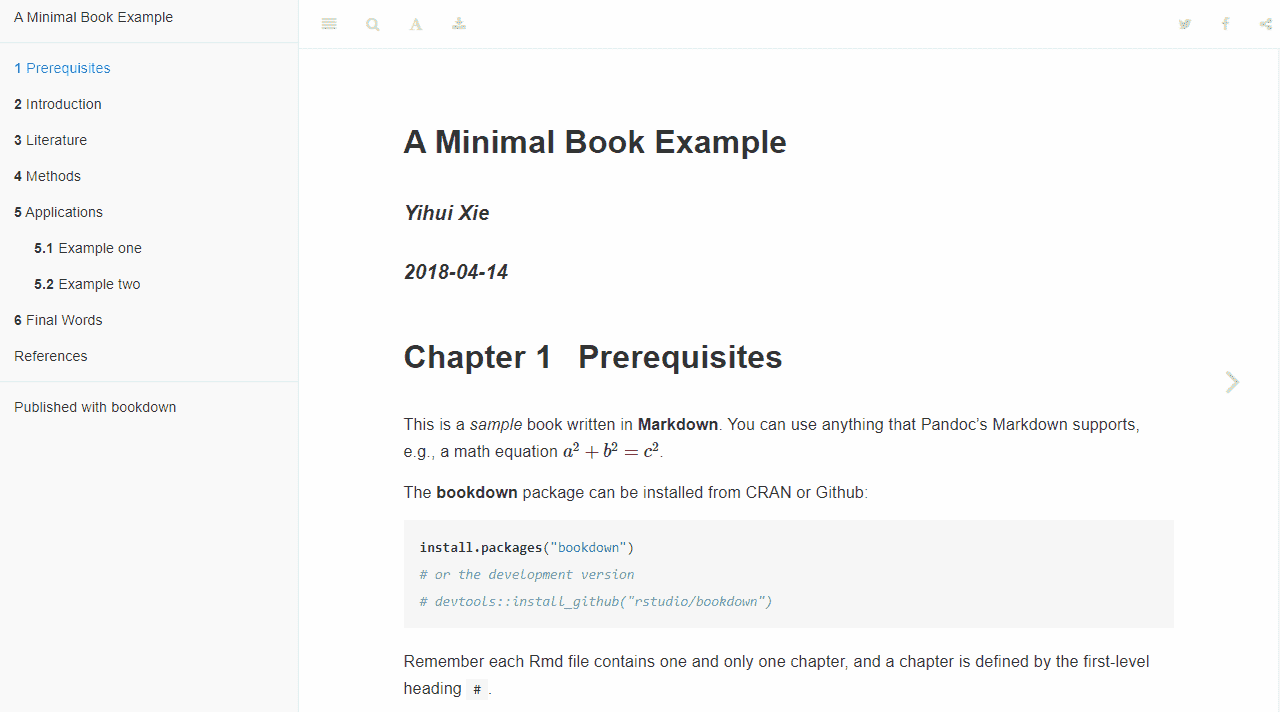
File -> New Project -> New Directory -> Book Project using bookdown. Alternatively, the command bookdown:::bookdown_skeleton(getwd()) will create a skeleton project in your current working directory. Open the R Markdown file index.Rmd, and click the button Build Book on the Build tab of RStudio. This will compile the book and display the HTML version within the RStudio Viewer, which looks like Figure 12.1.
Knit button again to preview the book. If you prefer not to use RStudio, you may also compile the book through the command line using bookdown::render_book().
directory/
├──  index.Rmd
├──  01-intro.Rmd
├──  02-literature.Rmd
├──  03-method.Rmd
├──  04-application.Rmd
├──  05-summary.Rmd
├──  06-references.Rmd
├── _bookdown.yml
├── _output.yml
├──  book.bib
├──  preamble.tex
├──  README.md
└──  style.css
index.Rmd: This is the only Rmd document to contain YAML frontmatter as described in Chapter 2, and is the first book chapter.
_bookdown.yml: A configuration file for bookdown.
_output.yml: It specifies the formatting of the HTML, LaTeX/PDF, and e-books.
preamble.tex and style.css: They can be used to adjust the appearance and styles of the book output document(s). Knowledge of LaTeX and/or CSS is required.
index.Rmd file contains the first chapter and the YAML metadata, for example:
---
title: "A Minimal Book Example"
author: "Yihui Xie"
date: "`r Sys.Date()`"
site: bookdown::bookdown_site
documentclass: book
bibliography: [book.bib, packages.bib]
biblio-style: apalike
link-citations: yes
description: "This is a minimal example of using
  the bookdown package to write a book."
---
index.Rmd to render the book. The Rmd files must start immediately with the chapter title using the first-level heading, for example # Chapter Title. YAML metadata should not be included in these Rmd files, as it is inherited from index.Rmd.
# Introduction

This chapter is an overview of the methods that
we propose to solve an **important problem**.
# Literature

Here is a review of existing methods.
01-intro.Rmd will appear before 02-literature.Rmd. Filenames that start with an underscore _ are skipped.
_bookdown.yml
_bookdown.yml file allows you to specify optional settings to build the book. For example, you may want to override the order in which files are merged by including the field rmd_files:
rmd_files: ["index.Rmd", "02-literature.Rmd", "01-intro.Rmd"]
_output.yml
_output.yml file is used to specify the book output formats (see Section 12.4). Here is a brief example:
bookdown::gitbook:
  lib_dir: assets
  split_by: section
  config:
    toolbar:
      position: static
bookdown::pdf_book:
  keep_tex: yes
bookdown::html_book:
  css: toc.css
equation environment, and assign labels using the syntax (#eq:label). Equation labels must start with the prefix eq: in bookdown. For example:
\begin{equation}
  E=mc^2
  (#eq:emc)
\end{equation}
```{theorem, label, name="Theorem name"}
Here is my theorem.
```
proof environment behaves similarly to theorem environments but is unnumbered.
theorem environments include: lemma, corollary, proposition, conjecture, definition, example, exercise, and hypothesis. The abbreviations for references (e.g., \@ref(lem:mylemma)) are respectively lem, cor, prp, cnj, def, exm, exr, and hyp. Variants of the proof environments include remark and solution. The syntax for these environments is similar to the theorem environment, e.g., ```{lemma}.
# (PART) Part Title {-} before the chapters that belong to this part.
# (APPENDIX) Appendix {-}. All chapters after this header will be treated as appendices and numbered A, B, C, and so on.
(ref:label) text, where label is a unique identifier, and text is a Markdown paragraph. For example:
(ref:foo) Define a text reference **here**.
(ref:foo) to refer to the full text. Text references can be used anywhere in the document, and are particularly useful when assigning a long caption to a figure or including Markdown formatting in a caption. For example:
    Some text.

    (ref:cool-plot) A boxplot of the data `iris` in **base** R.

```{r cool-plot, fig.cap='(ref:cool-plot)'}
    boxplot(Sepal.Length ~ Species, data = iris)
```
\@ref(type:label), where label is the chunk label and type is the environment being referenced. As examples:
# Introduction {#intro}

This is Chapter \@ref(intro)
        See Figure \@ref(fig:cars-plot)

```{r cars-plot, fig.cap="A plot caption"}
        plot(cars)  # a scatterplot
```
        See Table \@ref(tab:mtcars)

```{r mtcars}
        knitr::kable(mtcars[1:5, 1:5], caption = "A caption")
```
        See Theorem \@ref(thm:boring)

```{theorem, boring}
        Here is my theorem.
```
See equation \@ref(eq:linear)

\begin{equation}
a + bx = c  (\#eq:linear)
\end{equation}
pdf_book
epub_book
html_document2, tufte_html2, pdf_document2, tufte_handout2, tufte_book2, word_document2
bookdown::gitbook is built upon rmarkdown::html_document, which was explained in Section 3.1. The main difference between rendering in R Markdown and bookdown is that a book will generate multiple HTML pages by default. To change the way the HTML pages are split, the split_by argument can be specified. This defaults to split_by: chapter, but readers may prefer to use split_by: section if there are many sections within chapters, in which case a chapter page may be too long.
pdf_book() in bookdown compared to pdf_document() in rmarkdown. The primary purpose of the new format is to resolve labels and cross-references in the syntax described in Subsection 12.3.5.
\newpage to force a page break. A major disadvantage of this approach is that LaTeX syntax is not portable to other output formats, meaning that these changes will not be transferred to the HTML or e-book outputs.
bookdown::epub_book.
html_document2(), tufte_html2(), pdf_document2(), word_document2(), tufte_handout2(), and tufte_book2() are designed for this purpose. To use this in a traditional R Markdown document, you can replace the output YAML option as follows:
---
title: "Document Title"
output: bookdown::pdf_document2
---
bookdown::render_book(). It uses the settings specified in the _output.yml (if it exists). If multiple output formats are specified in it, all formats will be built. If you are using RStudio, this can be done through the Build tab. Open the drop down menu Build Book if you only want to build one format.
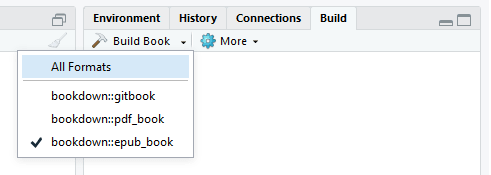
Build tab within RStudio highlighting bookdown output formats.
preview_chapter() function in bookdown to only build a single chapter at a time. Equivalently, you can click the Knit button in RStudio.
render_book() or preview_chapter() each time you want to view the changes, you can use the function bookdown::serve_book() to start a live preview of the book. Any time a Rmd file is saved, the book will be recompiled automatically, and the preview will be updated to reflect the changes.
bookdown::serve_book() to compile and serve the book.
bookdown::publish_book(). You will need to sign up for an account at https://bookdown.org/connect/, and your login details will be used to authorize bookdown the first time you call the publish_book() function.
bookdown::render_book() is a collection of static files, you can host them using the same methods of hosting normal web pages.
documentclass option in the YAML metadata of index.Rmd. Further customization of PDF appearance can be achieved by altering the LaTeX preamble via the includes: in_header option of bookdown::pdf_book.

