Chapter 6 Tufte Handouts
The Tufte handout style is a style that Edward Tufte uses in his books and handouts. Tufte’s style is known for its extensive use of sidenotes, tight integration of graphics with text, and well-set typography. This style has been implemented in LaTeX and HTML/CSS, respectively. Both implementations have been ported into the
1
See GitHub repositories
https://github.com/tufte-latex/tufte-latex and https://github.com/edwardtufte/tufte-css.
tufte package [33]. If you want LaTeX/PDF output, you may use the tufte_handout format for handouts, and tufte_book for books. For HTML output, use tufte_html, e.g.,
---
title: "An Example Using the Tufte Style"
author: "John Smith"
output:
  tufte::tufte_handout: default
  tufte::tufte_html: default
---
Figure 6.1 shows the basic layout of the Tufte style, in which you can see a main column on the left that contains the body of the document, and a side column on the right to display sidenotes.
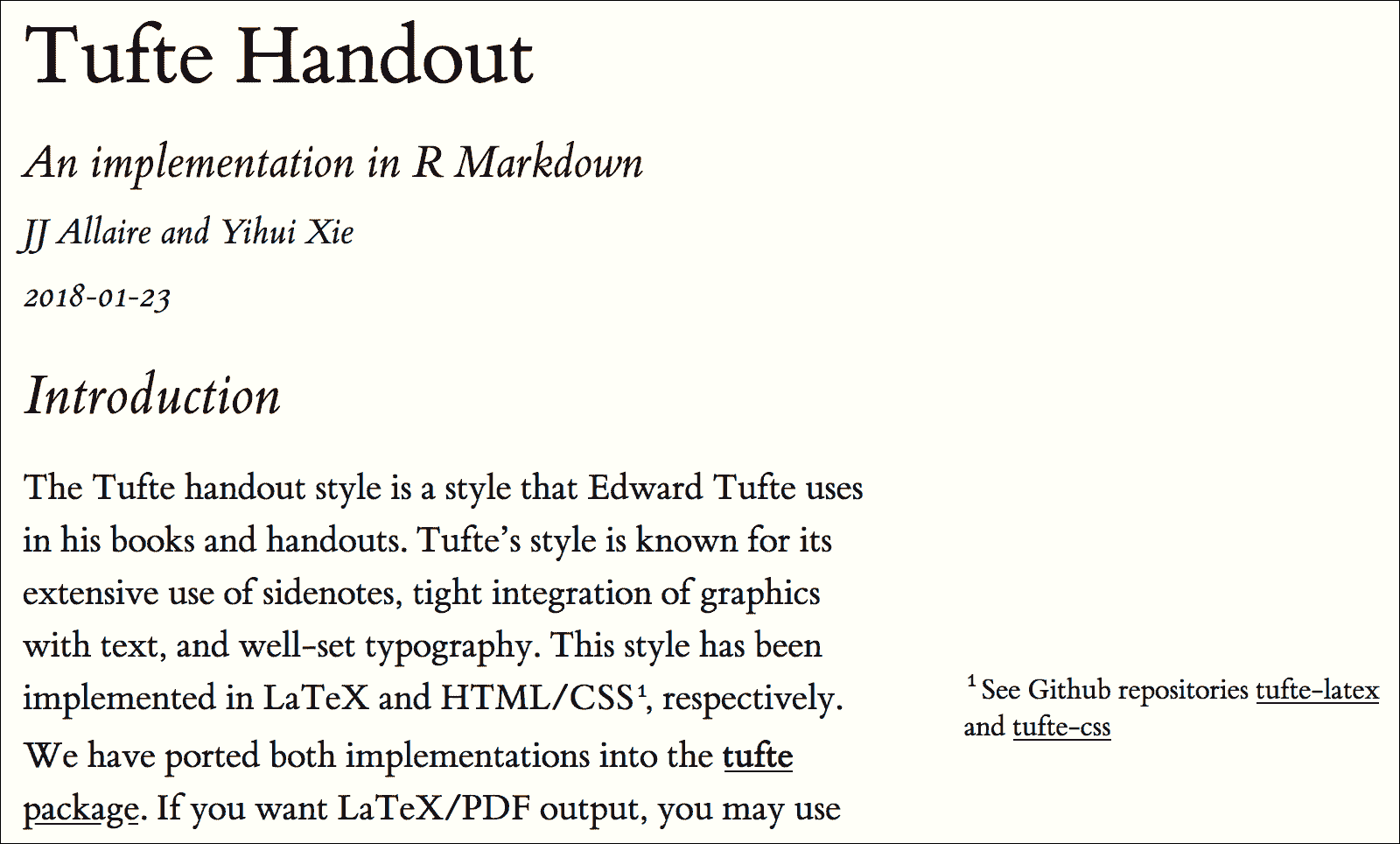
The basic layout of the Tufte style.
There are two goals for the
tufte package:
-
To produce both PDF and HTML output with similar styles from the same R Markdown document.
-
To provide simple syntax to write elements of the Tufte style such as side notes and margin figures. For example, when you want a margin figure, all you need to do is the chunk option
fig.margin = TRUE, andtuftewill take care of the details for you, so you never need to think about LaTeX environments like\begin{marginfigure} \end{marginfigure}or HTML tags like<span class="marginfigure"> </span>; the LaTeX and HTML code under the hood may be complicated, but you never need to learn or write such code.
You can use the wizard in RStudio IDE from the menu
File -> New File -> R Markdown -> From Template to create a new R Markdown document with a default example provided by the tufte package. Note that you need a LaTeX distribution if you want PDF output (see Chapter 1).
Section 6.1 Headings
The Tufte style provides the first and second-level headings (that is,
# and ##), demonstrated in the next section. You may get unexpected output (and even errors) if you try to use ### and smaller headings.
In his later books, Tufte starts each section with a bit of vertical space, a non-indented paragraph, and sets the first few words of the sentence in small caps. To accomplish this using this style, call the
2
Such as "Beautiful Evidence":
http://www.edwardtufte.com/tufte/books_be.
newthought() function in tufte in an inline R expression `r `. Note that you should not assume tufte has been attached to your R session. You should either use library(tufte) in your R Markdown document before you call newthought(), or use tufte::newthought().
Section 6.2 Figures
Subsection 6.2.1 Margin figures
Images and graphics play an integral role in Tufte’s work. To place figures in the margin, you can use the
knitr chunk option fig.margin = TRUE. For example:
```{r fig-margin, fig.margin=TRUE}
plot(cars)
```
````
As in other Rmd documents, you can use the
fig.cap chunk option to provide a figure caption, and adjust figure sizes using the fig.width and fig.height chunk options, which are specified in inches, and will be automatically scaled down to fit within the handout margin.
Figure 6.2 shows what a margin figure looks like.
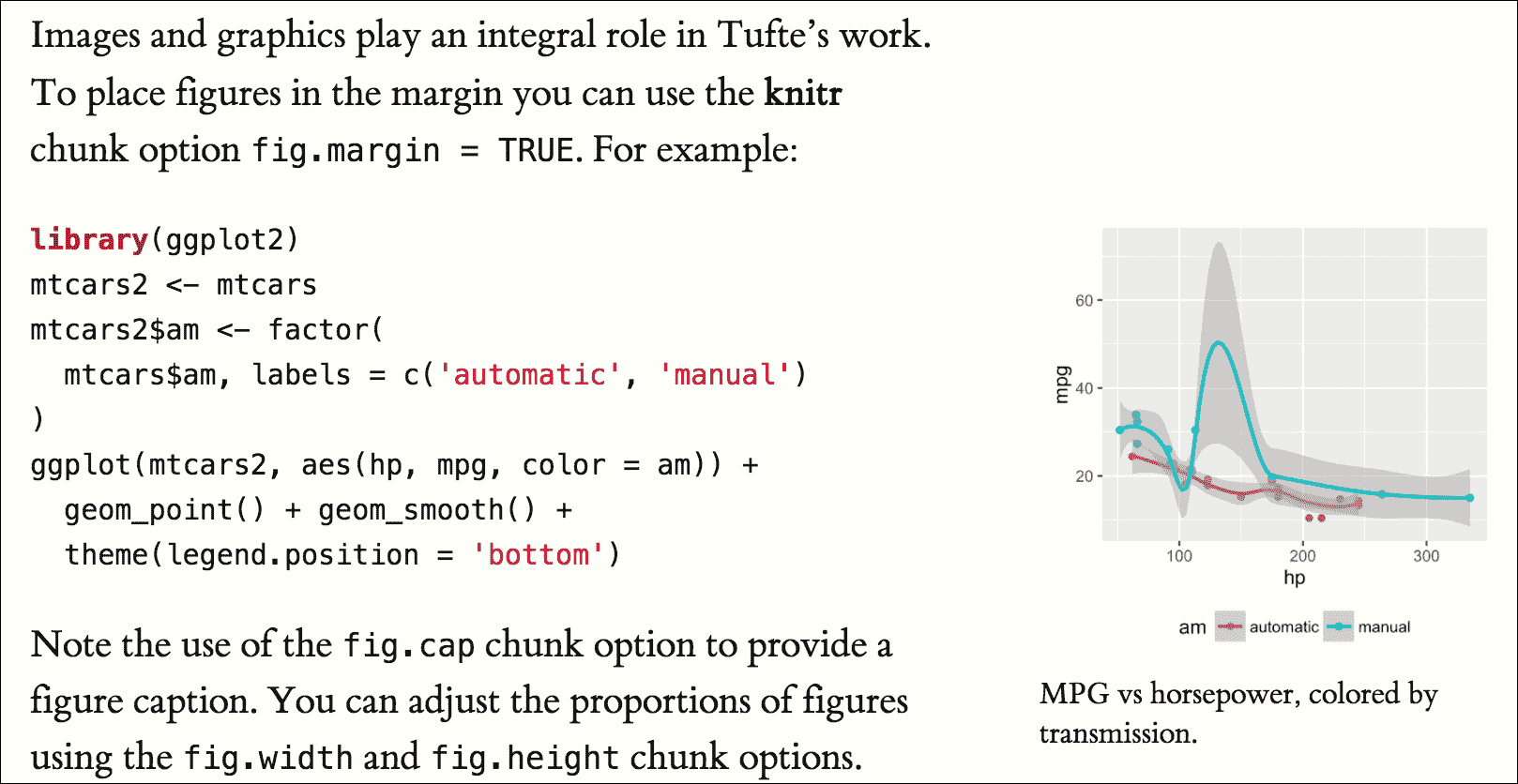
A margin figure in the Tufte style.
Subsection 6.2.2 Arbitrary margin content
You can include anything in the margin using the
knitr engine named marginfigure. Unlike R code chunks ```{r} ```, you write a chunk starting with ```{marginfigure} instead, then put the content in the chunk, e.g.,
```{marginfigure}
We know from _the first fundamental theorem of calculus_ that
for $x$ in $[a, b]$:
$$\frac{d}{dx}\left( \int_{a}^{x} f(u)\,du\right)=f(x).$$
```
````
For the sake of portability between LaTeX and HTML, you should keep the margin content as simple as possible (syntax-wise) in the
marginfigure blocks. You may use simple Markdown syntax like **bold** and _italic_ text, but please refrain from using footnotes, citations, or block-level elements (e.g., blockquotes and lists) there.
Note that if you set
echo = FALSE in your global chunk options, you will have to add echo = TRUE to the chunk to display a margin figure, for example ```{marginfigure, echo = TRUE}.
Subsection 6.2.3 Full-width figures
You can arrange for figures to span across the entire page by using the chunk option
fig.fullwidth = TRUE, e.g.,
```{r, fig.width=10, fig.height=2, fig.fullwidth=TRUE}
par(mar = c(4, 4, .1, .2)); plot(sunspots)
```
````
Other chunk options related to figures can still be used, such as
fig.width, fig.cap, and out.width, etc. For full-width figures, usually fig.width is large and fig.height is small. In the above example, the plot size is 10x2.
Figure 6.3 shows what a full-width figure looks like.
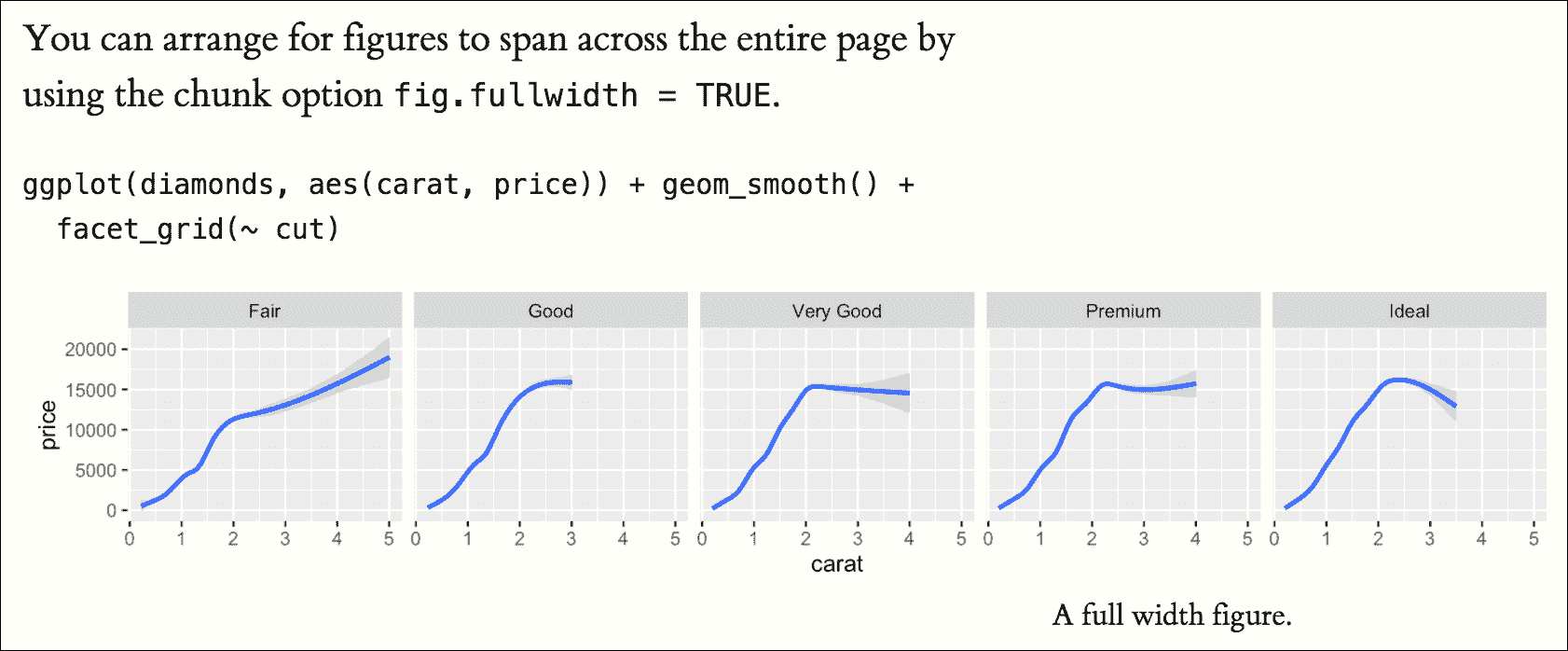
A full-width figure in the Tufte style.
Subsection 6.2.4 Main column figures
Besides margin and full-width figures, you can certainly also include figures constrained to the main column. This is the default type of figures in the LaTeX/HTML output, and requires no special chunk options.
Figure 6.4 shows what a figure looks like in the main column.
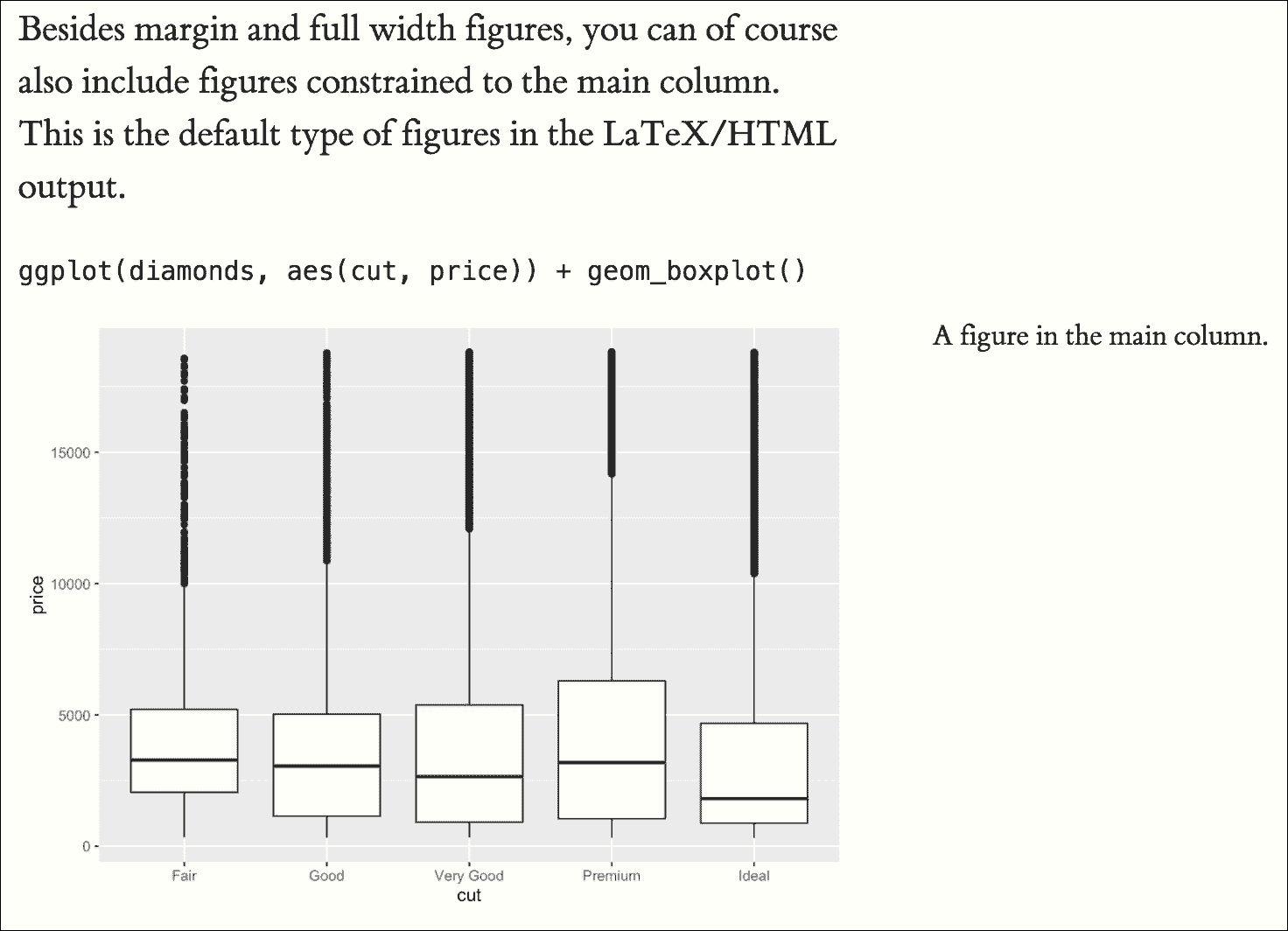
A figure in the main column in the Tufte style.
Section 6.3 Sidenotes
One of the most prominent and distinctive features of this style is the extensive use of sidenotes. There is a wide margin to provide ample room for sidenotes and small figures. Any use of a footnote, of which the Markdown syntax is
^[footnote content], will automatically be converted to a sidenote.
If you would like to place ancillary information in the margin without the sidenote mark (the superscript number), you can use the
margin_note() function from tufte in an inline R expression. This function does not process the text with Pandoc, so Markdown syntax will not work here. If you need to write anything in Markdown syntax, please use the marginfigure block described previously.
Section 6.4 References
References can be displayed as margin notes for HTML output. To enable this feature, you must set
link-citations: yes in the YAML metadata, and the version of pandoc-citeproc should be at least 0.7.2. To check the version of pandoc-citeproc in your system, you may run this in R:
```{r eval=FALSE}
system2('pandoc-citeproc', '--version')
```
If your version of
pandoc-citeproc is too low, or you did not set link-citations: yes in YAML, references in the HTML output will be placed at the end of the output document.
You can also explicitly disable this feature via the
margin_references option, e.g.,
---
output:
  tufte::tufte_html:
    margin_references: false
---
Section 6.5 Tables
You can use the
kable() function from the knitr package to format tables that integrate well with the rest of the Tufte handout style. The table captions are placed in the margin like figures in the HTML output. A simple example (Figure 6.5 shows the output):
```{r}
knitr::kable(
  mtcars[1:6, 1:6], caption = 'A subset of mtcars.'
)
```
````
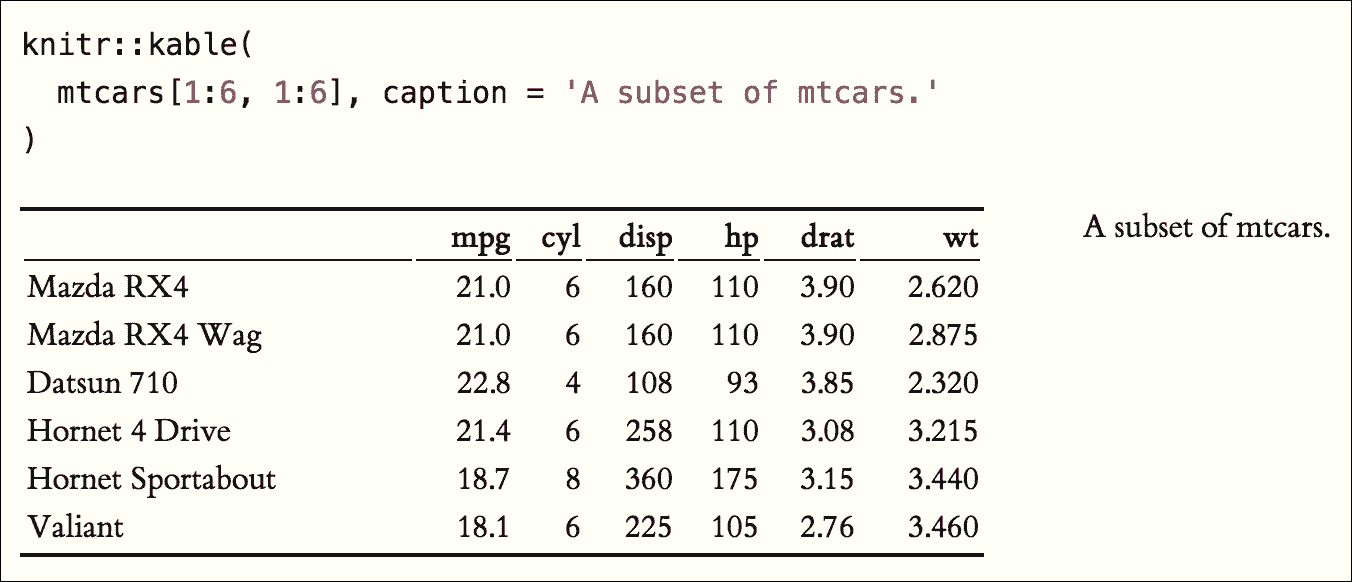
A table in the Tufte style.
Section 6.6 Block quotes
We know from the Markdown syntax that paragraphs that start with
> are converted to block quotes. If you want to add a right-aligned footer for the quote, you may use the function quote_footer() from tufte in an inline R expression. Here is an example:
> "If it weren't for my lawyer, I'd still be in prison.
>  It went a lot faster with two people digging."
>
> `r "\x60r tufte::quote_footer('--- Joe Martin')\x60"`
Section 6.7 Responsiveness
The HTML page is responsive in the sense that when the page width is smaller than 760px, sidenotes and margin notes will be hidden by default. For sidenotes, you can click their numbers (the superscripts) to toggle their visibility. For margin notes, you may click the circled plus signs to toggle visibility (see Figure 6.6).
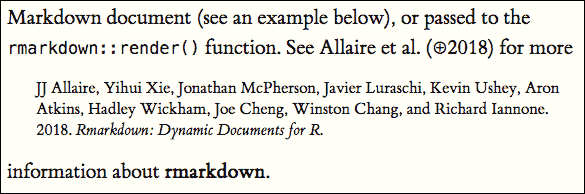
The Tufte HTML style on narrow screens.
Section 6.8 Sans-serif fonts and epigraphs
There are a few other things in Tufte CSS that we have not mentioned so far. If you prefer sans-serif fonts, use the function
sans_serif() in tufte. For epigraphs, you may use a pair of underscores to make the paragraph italic in a block quote, e.g.,
> _I can win an argument on any topic, against any opponent.
>  People know this, and steer clear of me at parties. Often,
>  as a sign of their great respect, they don't even invite me._
>
> `r "\x60r quote_footer('--- Dave Barry')\x60"`
Section 6.9 Customize CSS styles
You can turn on/off some features of the Tufte style in HTML output. The default features enabled are:
---
output:
  tufte::tufte_html:
    tufte_features: ["fonts", "background", "italics"]
---
If you do not want the page background to be lightyellow, you can remove
background from tufte_features. You can also customize the style of the HTML page via a CSS file. For example, if you do not want the subtitle to be italic, you can define
h3.subtitle em {
  font-style: normal;
}
in, say, a CSS file
my-style.css (under the same directory of your Rmd document), and apply it to your HTML output via the css option, e.g.,
---
output:
  tufte::tufte_html:
    tufte_features: ["fonts", "background"]
    css: "my-style.css"
---
There is also a variant of the Tufte style in HTML/CSS named "Envisioned CSS". This style can be enabled by specifying the argument e.g.,
tufte_variant = 'envisioned' in tufte_html(),3
The actual Envisioned CSS was not used in the
tufte package. Only the fonts, background color, and text color are changed based on the default Tufte style.
---
output:
  tufte::tufte_html:
    tufte_variant: "envisioned"
---
You can see a live example at
https://rstudio.github.io/tufte/. It is also available in Simplified Chinese: https://rstudio.github.io/tufte/cn/, and its envisioned style can be found at https://rstudio.github.io/tufte/envisioned/.

