Chapter 17 Document Templates
When you create a new R Markdown document from the RStudio menu
File -> New File -> R Markdown, you will see a default example document (a template) in the RStudio editor. In fact, you can create custom document templates by yourself, which can be useful if you need to create a particular type of document frequently or want to customize the appearance of the final report. The rticles package [25] in Chapter 13 is a good example of custom templates for a range of journals. Some additional examples of where a template could be used include:
-
Creating a company branded R Markdown template that includes a logo and branding colors.
-
Updating the default YAML settings to include standard fields for
title,author,date, or defaultoutputoptions. -
Customizing the layout of the output document by adding additional fields to the YAML metadata. For example, you can add a
departmentfield to be included within your title page.
Once created, templates are easily accessed within RStudio, and will appear within the "New R Markdown" window as shown in Figure 17.1.
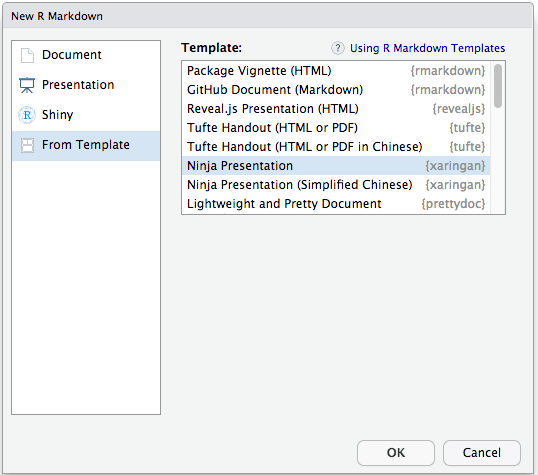
Selecting R Markdown templates within RStudio.
This chapter explains how to create templates and share them within an R package. If you would like to see some real-world examples, you may check out the source package of rticles (https://github.com/rstudio/rticles). The
rmarkdown::html_vignette format is also a relatively simple example (see both its R source code and the template structure). In addition, Michael Harper has kindly prepared more examples in the repository https://github.com/dr-harper/example-rmd-templates.
Section 17.1 Template structure
R Markdown templates should be contained within an R package, which can be easily created from the menu
File -> New Project in RStudio (choose the project type to be "R Package"). If you are already familiar with creating R packages, you are certainly free to use your own favorite way to create a new package.
Templates are located within the
inst/rmarkdown/templates directory of a package. This structure can be generated automatically with the use_rmarkdown_template() function from the usethis package. It is possible to contain multiple templates in a single package, with each template stored in a separate sub-directory. As a minimal example, inst/rmarkdown/templates/my_template requires the following files:
template.yaml
skeleton/skeleton.Rmd
The
template.yaml specifies how the template is displayed within the RStudio "From Template" dialog box. This YAML file must have a name and a description field. You can optionally specify create_dir: true if you want a new directory to be created when the template is selected. As an example of the template.yaml file:
name: My Template
description: This is my template
You can provide a brief example R Markdown document in
skeleton.Rmd, which will be opened in RStudio when the template is selected. We can add section titles, load commonly used packages, or specify default YAML parameters in this skeleton document. In the following example, we specify the default output format to bookdown::html_document2, and select a default template flatly:
---
title: "Untitled"
author: "Your Name"
output:
  bookdown::html_document2:
    toc: true
    fig_caption: true
    template: flatly
---

## Introduction

## Analysis

## Conclusions
Section 17.2 Supporting files
Sometimes a template may require supporting files (e.g., images, CSS files, or LaTeX style files). Such files should be placed in the
skeleton directory. They will be automatically copied to the directory where the new document is created. For example, if your template requires a logo and CSS style sheet, they can be put under the directory inst/rmarkdown/templates/my_template:
template.yaml
skeleton/skeleton.Rmd
skeleton/logo.png
skeleton/styles.css
We can refer to these files within the
skeleton.Rmd file, e.g.,
---
title: "Untitled"
author: "Your Name"
output:
html_document:
css: styles.css
---

# Introduction
# Analysis
```{r}
knitr::kable(mtcars[1:5, 1:5])
```
# Conclusion
Section 17.3 Custom Pandoc templates
An R Markdown is first compiled to Markdown through knitr, and then converted to an output document (e.g., PDF, HTML, or Word) by Pandoc through a Pandoc template. While the default Pandoc templates used by R Markdown are designed to be flexible by allowing parameters to be specified in the YAML, users may wish to provide their own template for more control over the output format.
You can make use of additional YAML fields from the source document when designing a Pandoc template. For example, you may wish to have a
department field to be added to your title page, or include an editor field to be displayed below the author. We can add additional variables to the Pandoc template by surrounding the variable in dollar signs ($) within the template. Most variables take values from the YAML metadata of the R Markdown document (or command-line arguments passed to Pandoc). We may also use conditional statements and for-loops. Readers are recommended to check the Pandoc manual for more details: https://pandoc.org/MANUAL.html#using-variables-in-templates. Below is an example of a very minimal Pandoc template for HTML documents that only contains two variables ($title$ and $body$):
<html>
  <head>
    <title>$title$</title>
  </head>

  <body>
  $body$
  </body>
</html>
For R Markdown to use the customized template, you can specify the
template option in the output format (provided that the output format supports this option), e.g.,
output:
  html_document:
    template: template.html
If you wish to design your own template, we recommend starting from the default Pandoc templates included within the rmarkdown package (https://github.com/rstudio/rmarkdown/tree/master/inst/rmd) or Pandoc’s built-in templates (https://github.com/jgm/pandoc-templates).

