Section 2.3 Spreadsheets
Spreadsheets are an incredibly common format in which data are stored. If you’ve ever worked in Microsoft Excel or Google Sheets, you’ve worked with spreadsheets. By definition, spreadsheets require that information be stored in a grid utilizing rows and columns.
Subsection 2.3.1 Excel files
Microsoft Excel files, which typically have the file extension .xls or .xlsx, store information in a workbook. Each workbook is made up of one or more spreadsheet. Within these spreadsheets, information is stored in the format of values and formatting (colors, conditional formatting, font size, etc.). While this may be a format you’ve worked with before and are familiar, we note that Excel files can only be viewed in specific pieces of software (like Microsoft Excel), and thus are generally less flexible than many of the other formats we’ll discuss in this course. Additionally, Excel has certain defaults that make working with Excel data difficult outside of Excel. For example, Excel has a habit of aggressively changing data types. For example if you type 1/2, to mean 0.5 or one-half, Excel assumes that this is a date and converts this information to January 2nd. If you are unfamiliar with these defaults, your spreadsheet can sometimes store information other than what you or whoever entered the data into the Excel spreadsheet may have intended. Thus, it’s important to understand the quirks of how Excel handles data. Nevertheless, many people do save their data in Excel, so it’s important to know how to work with them in R.
Subsubsection 2.3.1.1 Reading Excel files into R
Reading spreadsheets from Excel into R is made possible thanks to the
readxl package. This is not a core tidyverse package, so you’ll need to install and load the package in before use:
##install.packages("readxl")
library(readxl)
The function
read_excel() is particularly helpful whenever you want read an Excel file into your R Environment. The only required argument of this function is the path to the Excel file on your computer. In the following example, read_excel() would look for the file "filename.xlsx" in your current working directory. If the file were located somewhere else on your computer, you would have to provide the path to that file.
# read Excel file into R
df_excel <- read_excel("filename.xlsx")
Within the
readxl package there are a number of example datasets that we can use to demonstrate the packages functionality. To read the example dataset in, we’ll use the readxl_example() function.
# read example file into R
example <- readxl_example("datasets.xlsx")
df <- read_excel(example)
df
## # A tibble: 150 × 5
##    Sepal.Length Sepal.Width Petal.Length Petal.Width Species
##           <dbl>       <dbl>        <dbl>       <dbl> <chr>
##  1          5.1         3.5          1.4         0.2 setosa
##  2          4.9         3            1.4         0.2 setosa
##  3          4.7         3.2          1.3         0.2 setosa
##  4          4.6         3.1          1.5         0.2 setosa
##  5          5           3.6          1.4         0.2 setosa
##  6          5.4         3.9          1.7         0.4 setosa
##  7          4.6         3.4          1.4         0.3 setosa
##  8          5           3.4          1.5         0.2 setosa
##  9          4.4         2.9          1.4         0.2 setosa
## 10          4.9         3.1          1.5         0.1 setosa
## # … with 140 more rows
Note that the information stored in
df is a tibble. This will be a common theme throughout the packages used in these courses.
Further, by default,
read_excel() converts blank cells to missing data (NA). This behavior can be changed by specifying the na argument within this function. There are a number of additional helpful arguments within this function. They can all be seen using ?read_excel, but we’ll highlight a few here:
-
sheet- argument specifies the name of the sheet from the workbook you’d like to read in (string) or the integer of the sheet from the workbook. -
col_names- specifies whether the first row of the spreadsheet should be used as column names (default: TRUE). Additionally, if a character vector is passed, this will rename the columns explicitly at time of import. -
skip- specifies the number of rows to skip before reading information from the file into R. Often blank rows or information about the data are stored at the top of the spreadsheet that you want R to ignore.
For example, we are able to change the column names directly by passing a character string to the
col_names argument:
# specify column names on import
read_excel(example, col_names = LETTERS[1:5])
## # A tibble: 151 × 5
##    A            B           C            D           E
##    <chr>        <chr>       <chr>        <chr>       <chr>
##  1 Sepal.Length Sepal.Width Petal.Length Petal.Width Species
##  2 5.1          3.5         1.4          0.2         setosa
##  3 4.9          3           1.4          0.2         setosa
##  4 4.7          3.2         1.3          0.2         setosa
##  5 4.6          3.1         1.5          0.2         setosa
##  6 5            3.6         1.4          0.2         setosa
##  7 5.4          3.9         1.7          0.4         setosa
##  8 4.6          3.4         1.4          0.3         setosa
##  9 5            3.4         1.5          0.2         setosa
## 10 4.4          2.9         1.4          0.2         setosa
## # … with 141 more rows
To take this a step further let’s discuss one of the lesser-known arguments of the
read_excel() function: .name_repair. This argument allows for further fine-tuning and handling of column names.
The default for this argument is
.name_repair = "unique". This checks to make sure that each column of the imported file has a unique name. If TRUE, readxl leaves them as is, as you see in the example here:
# read example file into R using .name_repair default
read_excel(
  readxl_example("deaths.xlsx"),
  range = "arts!A5:F8",
  .name_repair = "unique"
)
## # A tibble: 3 × 6
##   Name          Profession   Age `Has kids` `Date of birth`     `Date of death`
##   <chr>         <chr>      <dbl> <lgl>      <dttm>              <dttm>
## 1 David Bowie   musician      69 TRUE       1947-01-08 00:00:00 2016-01-10 00:00:00
## 2 Carrie Fisher actor         60 TRUE       1956-10-21 00:00:00 2016-12-27 00:00:00
## 3 Chuck Berry   musician      90 TRUE       1926-10-18 00:00:00 2017-03-18 00:00:00
Another option for this argument is
.name_repair = "universal". This ensures that column names don’t contain any forbidden characters or reserved words. It’s often a good idea to use this option if you plan to use these data with other packages downstream. This ensures that all the column names will work, regardless of the R package being used.
# require use of universal naming conventions
read_excel(
  readxl_example("deaths.xlsx"),
  range = "arts!A5:F8",
  .name_repair = "universal"
)
## New names:
## * `Has kids` -> Has.kids
## * `Date of birth` -> Date.of.birth
## * `Date of death` -> Date.of.death
## # A tibble: 3 × 6
##   Name          Profession   Age Has.kids Date.of.birth       Date.of.death
##   <chr>         <chr>      <dbl> <lgl>    <dttm>              <dttm>
## 1 David Bowie   musician      69 TRUE     1947-01-08 00:00:00 2016-01-10 00:00:00
## 2 Carrie Fisher actor         60 TRUE     1956-10-21 00:00:00 2016-12-27 00:00:00
## 3 Chuck Berry   musician      90 TRUE     1926-10-18 00:00:00 2017-03-18 00:00:00
Note that when using
.name_repair = "universal", you’ll get a readout about which column names have been changed. Here you see that column names with a space in them have been changed to periods for word separation.
Aside from these options, functions can be passed to
.name_repair. For example, if you want all of your column names to be uppercase, you would use the following:
# pass function for column naming
read_excel(
  readxl_example("deaths.xlsx"),
  range = "arts!A5:F8",
  .name_repair = toupper
)
## # A tibble: 3 × 6
##   NAME          PROFESSION   AGE `HAS KIDS` `DATE OF BIRTH`     `DATE OF DEATH`
##   <chr>         <chr>      <dbl> <lgl>      <dttm>              <dttm>
## 1 David Bowie   musician      69 TRUE       1947-01-08 00:00:00 2016-01-10 00:00:00
## 2 Carrie Fisher actor         60 TRUE       1956-10-21 00:00:00 2016-12-27 00:00:00
## 3 Chuck Berry   musician      90 TRUE       1926-10-18 00:00:00 2017-03-18 00:00:00
Notice that the function is passed directly to the argument. It does not have quotes around it, as we want this to be interpreted as the
toupper() function.
Here we’ve really only focused on a single function (
read_excel()) from the readxl package. This is because some of the best packages do a single thing and do that single thing well. The readxl package has a single, slick function that covers most of what you’ll need when reading in files from Excel. That is not to say that the package doesn’t have other useful functions (it does!), but this function will cover your needs most of the time.
Subsection 2.3.2 Google Sheets
Similar to Microsoft Excel, Google Sheets is another place in which spreadsheet information is stored. Google Sheets also stores information in spreadsheets within workbooks. Like Excel, it allows for cell formatting and has defaults during data entry that could get you into trouble if you’re not familiar with the program.
Unlike Excel files, however, Google Sheets live on the Internet, rather than your computer. This makes sharing and updating Google Sheets among people working on the same project much quicker. This also makes the process for reading them into R slightly different. Accordingly, it requires the use of a different, but also very helpful package,
googlesheets4!
As Google Sheets are stored on the Internet and not on your computer, the
googlesheets4 package does not require you to download the file to your computer before reading it into R. Instead, it reads the data into R directly from Google Sheets. Note that if the data hosted on Google Sheets changes, every time the file is read into R, the most updated version of the file will be utilized. This can be very helpful if you’re collecting data over time; however, it could lead to unexpected changes in results if you’re not aware that the data in the Google Sheet is changing.
To see exactly what we mean, let’s look at a specific example. Imagine you’ve sent out a survey to your friends asking about how they spend their day. Let’s say you’re mostly interested in knowing the hours spent on work, leisure, sleep, eating, socializing, and other activities. So in your Google Sheet you add these six items as columns and one column asking for your friends names. To collect this data, you then share the link with your friends, giving them the ability to edit the Google Sheet.
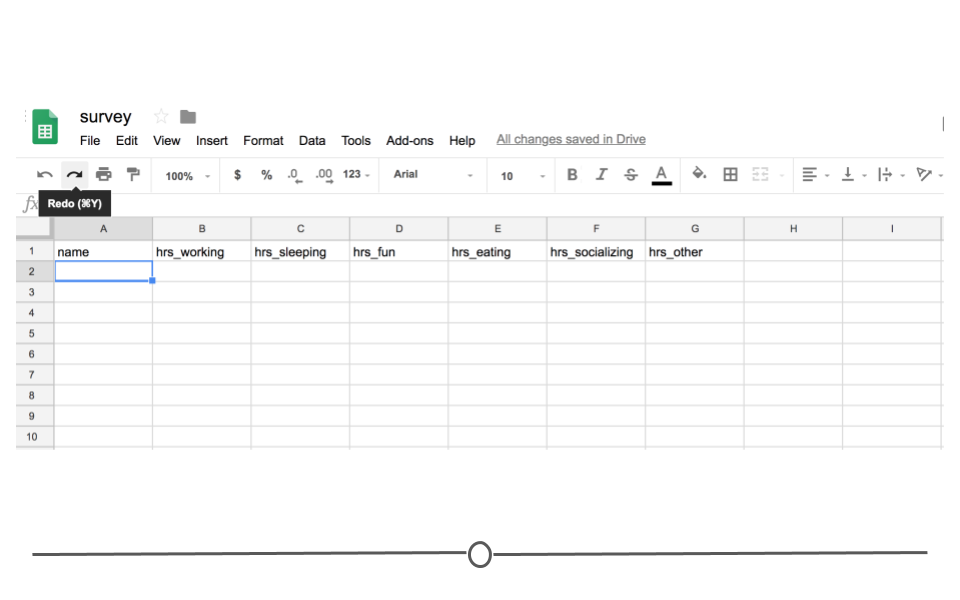
Your friends will then one-by-one complete the survey. And, because it’s a Google Sheet, everyone will be able to update the Google Sheet, regardless of whether or not someone else is also looking at the Sheet at the same time. As they do, you’ll be able to pull the data and import it to R for analysis at any point. You won’t have to wait for everyone to respond. You’ll be able to analyze the results in real-time by directly reading it into R from Google Sheets, avoiding the need to download it each time you do so.
In other words, every time you import the data from the Google Sheets link using the
googlesheets4 package, the most updated data will be imported. Let’s say, after waiting for a week, your friends’ data look something like this:
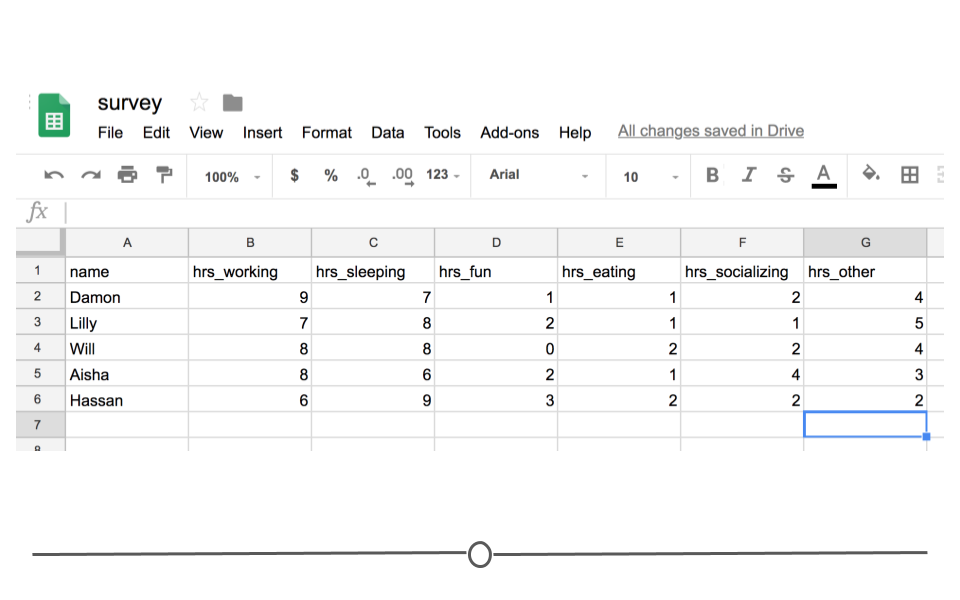
You’d be able to analyze these updated data using R and the
googlesheets4 package!
Subsubsection 2.3.2.1 The googlesheets4 package
The
googlesheets4 package allows R users to take advantage of the Google Sheets Application Programming Interface (API). Very generally, APIs allow different applications to communicate with one another. In this case, Google has released an API that allows other software to communicate with Google Sheets and retrieve data and information directly from Google Sheets. The googlesheets4 package enables R users (you!) to easily access the Google Sheets API and retrieve your Google Sheets data.
Using this package is is the best and easiest way to analyze and edit Google Sheets data in R. In addition to the ability of pulling data, you can also edit a Google Sheet or create new sheets.
The
googlesheets4 package is tidyverse-adjacent, so it requires its own installation. It also requires that you load it into R before it can be used.
Getting Started with googlesheets4.
#install.packages("googlesheets4")
# load package
library(googlesheets4)
Now, let’s get to importing your survey data into R. Every time you start a new session, you need to authenticate the use of the
googlesheets4 package with your Google account. This is a great feature as it ensures that you want to allow access to your Google Sheets and allows the Google Sheets API to make sure that you should have access to the files you’re going to try to access.
The command
gs4_auth() will open a new page in your browser that asks you which Google account you’d like to have access to. Click on the appropriate Google user to provide googlesheets4 access to the Google Sheets API.
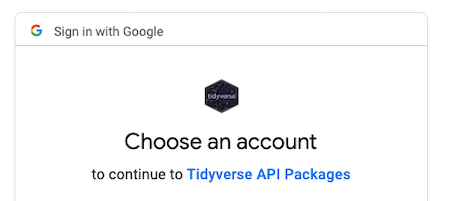
After you click “ALLOW”, giving permission for the
googlesheets4 package to connect to your Google account, you will likely be shown a screen where you will be asked to copy an authentication code. Copy this authentication code and paste it into R.

Navigating googlesheets4:gs4_find().

Reading data in using googlesheets:gs_read().
In order to ultimately access the information a specific Google Sheet, you can use
the read_sheets() function by typing in the id listed for your Google Sheet of interest when using gs4_find().
# read Google Sheet into R with id
read_sheet("2cdw-678dSPLfdID__LIt8eEFZPasdebgIGwHk")
# note this is a fake id
You can also navigate to your own sheets or to other people’s sheets using a URL. For example, paste [https://docs.google.com/spreadsheets/d/1FN7VVKzJJyifZFY5POdz_LalGTBYaC4SLB-X9vyDnbY/] in your web browser or click here. We will now read this into R using the URL:
 # read Google Sheet into R with URL
survey_sheet <- read_sheet("https://docs.google.com/spreadsheets/d/1FN7VVKzJJyifZFY5POdz_LalGTBYaC4SLB-X9vyDnbY/")
Note that we assign the information stored in this Google Sheet to the object
survey_sheet so that we can use it again shortly.
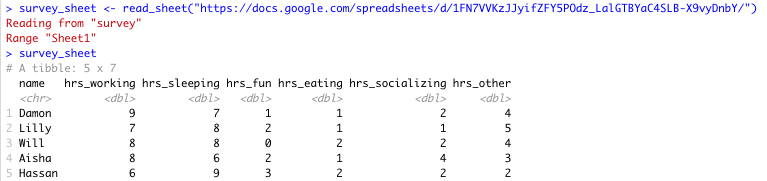
Note that by default the data on the first sheet will be read into R. If you wanted the data on a particular sheet you could specify with the sheet argument, like so:
 # read specific Google Sheet into R wih URL
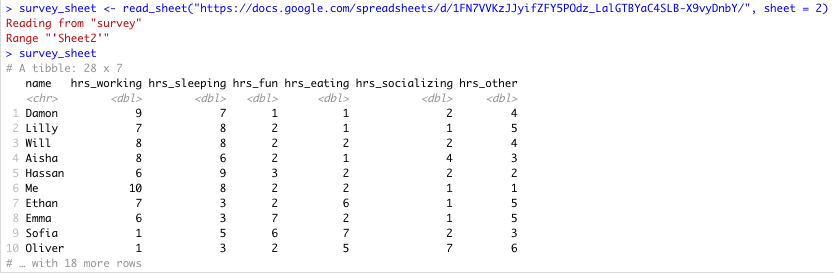
survey_sheet <- read_sheet("https://docs.google.com/spreadsheets/d/1FN7VVKzJJyifZFY5POdz_LalGTBYaC4SLB-X9vyDnbY/", sheet = 2)
If the sheet was named something in particular you would use this instead of the number 2.
Here you can see that there is more data on sheet 2:
There are other additional (optional) arguments to
read_sheet(), some are similar to those in read_csv() and read_excel(), while others are more specific to reading in Google Sheets:
-
skip = 1: will skip the first row of the Google Sheet -
col_names= FALSE`: specifies that the first row is not column names -
range = "A1:G5": specifies the range of cells that we like to import is A1 to G5 -
n_max = 100: specifies the maximum number of rows that we want to import is 100
In summary, to read in data from a Google Sheet in
googlesheets4, you must first know the id, the name or the URL of the Google Sheet and have access to it.
See https://googlesheets4.tidyverse.org/reference/index.html for a list of additional functions in the
googlesheets4 package.