Section 3.7 Working With Strings
You’re likely familiar with strings generally; however, to review briefly here:
A string is a sequence of characters, letters, numbers or symbols.
So within R, you could create a string using this syntax. Note that the string begins and ends with quotation marks:
stringA <- "This sentence is a string."
Multiple strings can be stored within vectors. So, if you have multiple vectors that you want to store in a single object, you could do so by using c() around the strings you want to store and commas to separate each individual string:
objectA <- c( "This sentence is a string.", "Short String", "Third string" )
Subsection 3.7.1 stringr
stringr is a core tidyverse package specifically designed to help make your life easier when working with strings. Similar to what we saw with
forcats functions starting with fct_, all functions within this package start with str_, as you’ll see below. There are many helpful functions within the stringr package. We’ll only review the basics here, but if you’re looking to accomplish something with a string and aren’t sure how to approach it, the stringr package is a good first place to look.
The best way to work through this lesson is to copy and paste every line of code into your RStudio window and see if the output makes sense to you. Working with strings and regular expressions is best learned by practice.
Subsubsection 3.7.1.1 Available functions
As we’ll only cover a few of the functions within
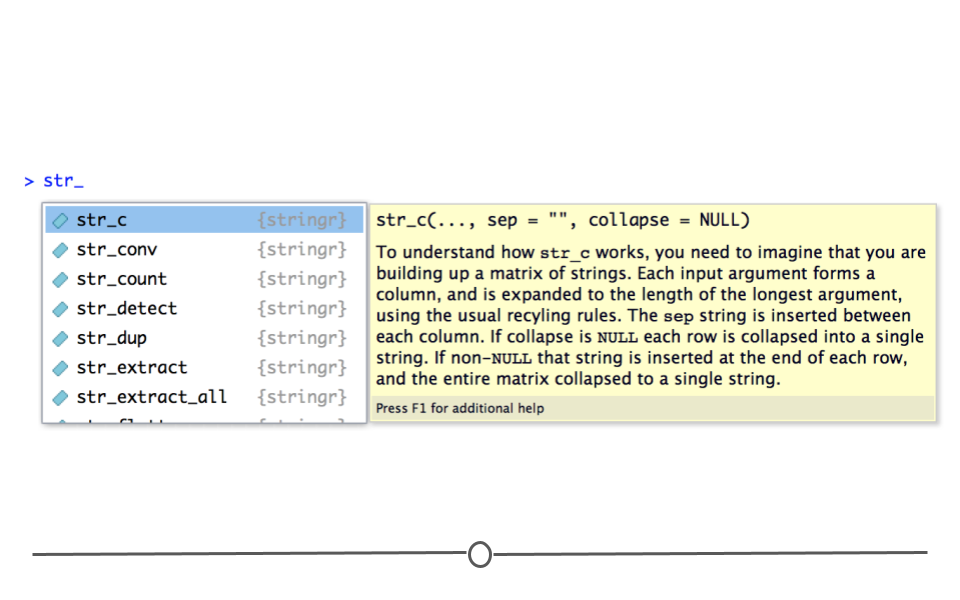
stringr in this lesson, it’s important to remember that if you start typing "str_" within RStudio, a list of the many options will show up.
Subsection 3.7.2 String Basics
When working with strings, some of the most frequent tasks you’ll need to complete are to:
-
determine the length of a string
-
combine strings together
-
subset strings
Subsubsection 3.7.2.1 String length
Returning to our object with three strings from earlier in the lesson, we can determine the length of each string in the vector.
objectA <- c( "This sentence is a string.", "Short String", "Third string" )

str_length(objectA)
## [1] 26 12 12
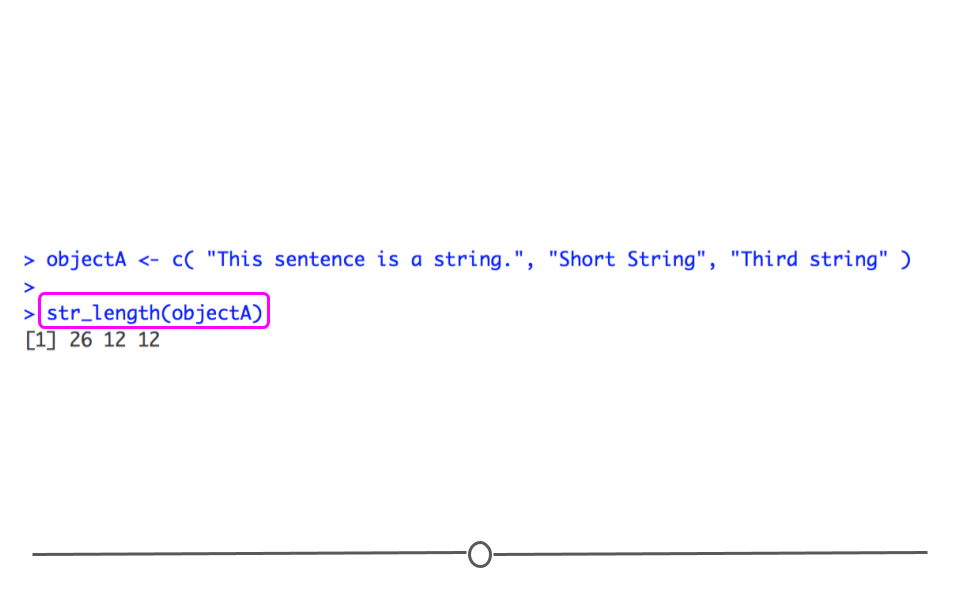
Here we see that the first string has a length of 26. If you were to go back and count the characters in the first string, you would see that this 26 includes each letter, space, and period in that string. The length of a string does not just could the letters in its length. The length includes every character. The second and third strings each have length 12.
Subsubsection 3.7.2.2 Combining strings: str_c()
If you were interested in combining strings, you’d want to use
str_c.
str_c( "Good", "Morning")
## [1] "GoodMorning"
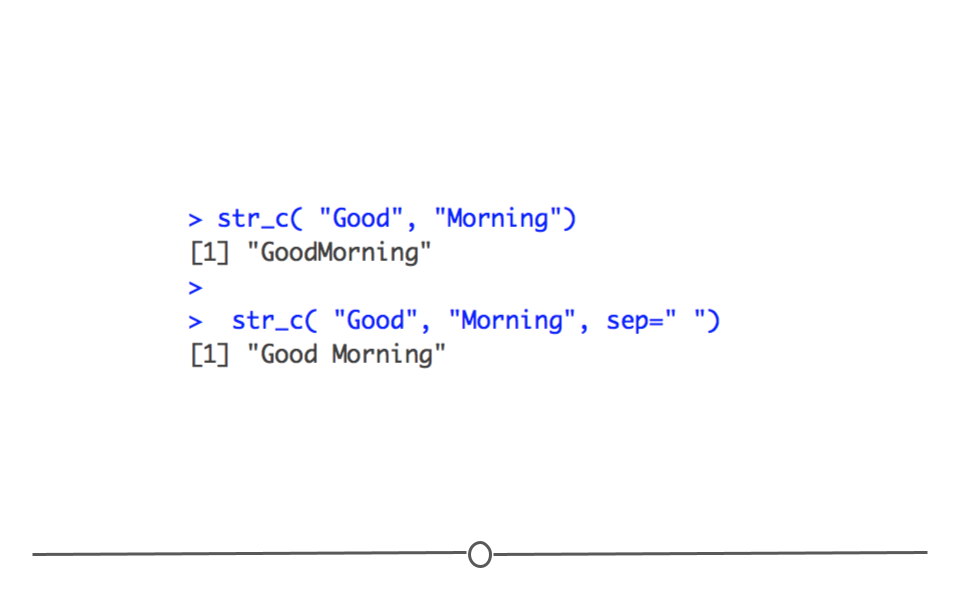
However, the output from this doesn’t look quite right. You may want a space between these two words when you combine the two strings. That can be controlled with the
sep argument.
str_c( "Good", "Morning", sep=" ")
## [1] "Good Morning"
Subsubsection 3.7.2.3 Subsetting strings: str_sub()
Often, it’s important to get part of a string out. To do this, you’ll want to subset the string using the
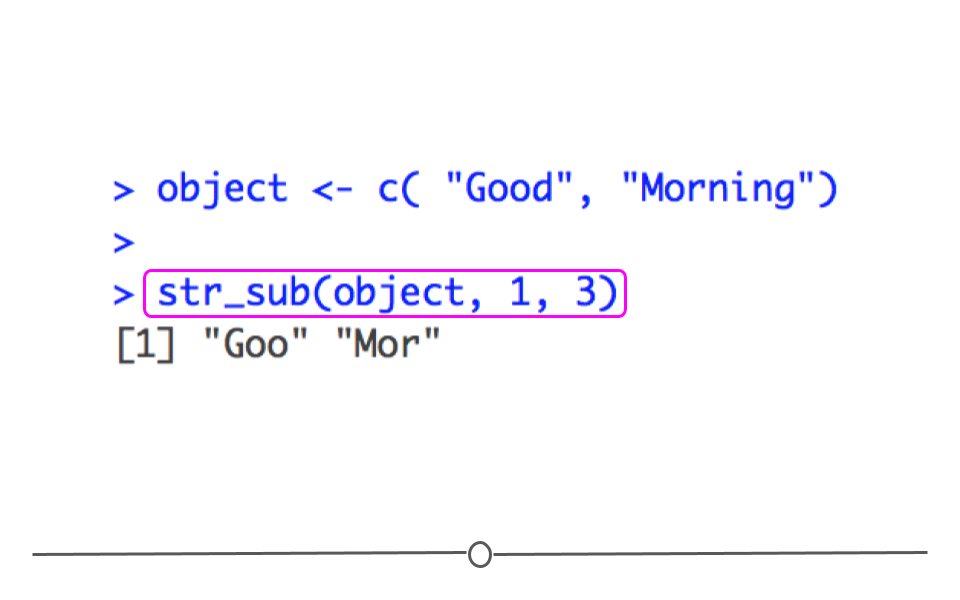
str_sub() function. For example, if you wanted only the first three characters in the string below, you would specify that within str_sub().
object <- c( "Good", "Morning")

str_sub(object, 1, 3)
## [1] "Goo" "Mor"
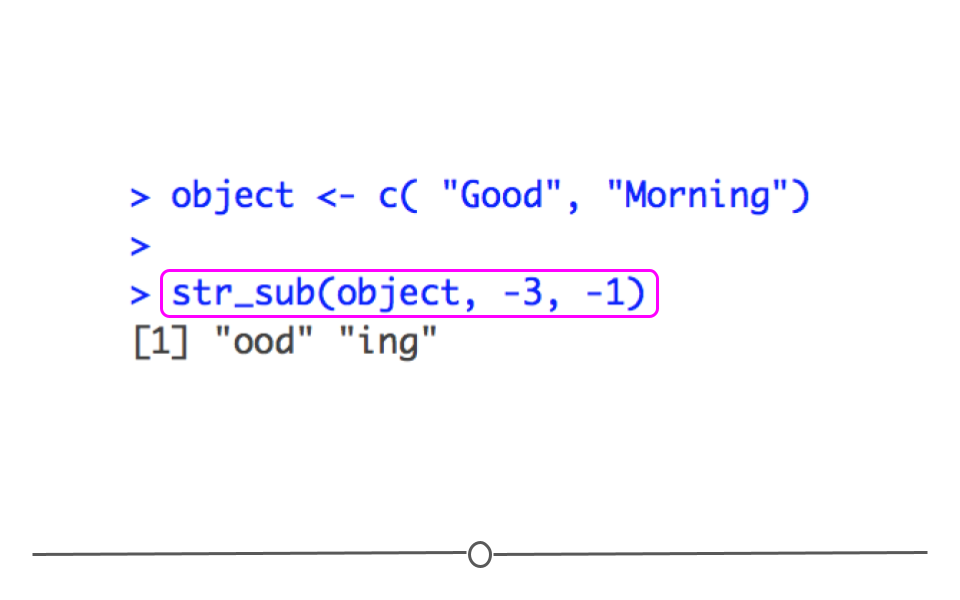
You can also use negative numbers to count from the end of the string. For example, below we see code that returns the last three positions in the string.
object <- c( "Good", "Morning")

str_sub(object, -3, -1)
## [1] "ood" "ing"
Subsubsection 3.7.2.4 String sorting: str_sort()
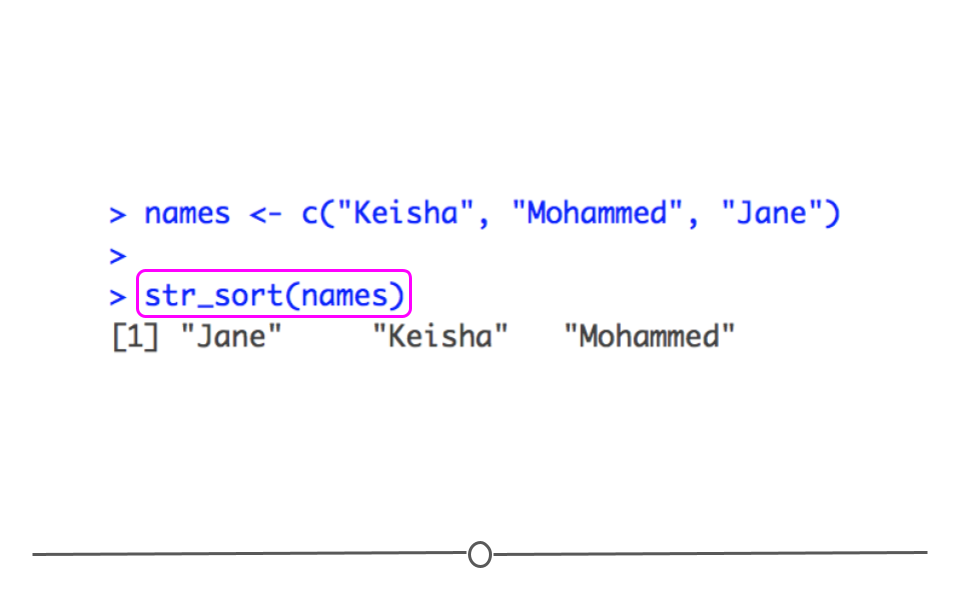
Finally, if you wanted to sort a string alphabetically,
str_sort() can help you accomplish that.
names <- c("Keisha", "Mohammed", "Jane")

str_sort(names)
## [1] "Jane" "Keisha" "Mohammed"
Subsection 3.7.3 Regular Expressions
Above we discussed the basics of working with strings within
stringr. However, working with strings becomes infinitely easier with an understanding of regular expressions. Regular expressions (regexps) are used to describe patterns within strings. They can take a little while to get the hang of but become very helpful once you do. With regexps, instead of specifying that you want to extract the first three letters of a string (as we did above), you could more generally specify that you wanted to extract all strings that start with a specific letter or that contain a specific word somewhere in the string using regexps. We’ll explore the basics of regexps here.
The use them in
stringr, the general format is function(string , pattern = regexp), which you’ll see used in practice below.
We’ll cover a number of helpful
stringr functions:
-
str_view()- View the first occurrence in a string that matches the regex -
str_view_all()- View all occurrences in a string that match the regex -
str_count()- count the number of times a regex matches within a string -
str_detect()- determine if regex is found within string -
str_subset()- return subset of strings that match the regex -
str_extract()- return portion of each string that matches the regex -
str_replace()- replace portion of string that matches the regex with something else
Subsubsection 3.7.3.1 Anchors
If interested in finding a pattern at the beginning (
^) or end ($) of a string, you can specify that using a regexp. For example, if you wanted to only look at names that started with the letter "M", you would specify that using a regexp. The pattern you would include would be "^M" to identify all strings that start with the letter M. To specify those strings that end with a capital M, you would specify the pattern "$M".
Subsubsection 3.7.3.2 Show matches: str_view()
To get comfortable with using regexps with strings,
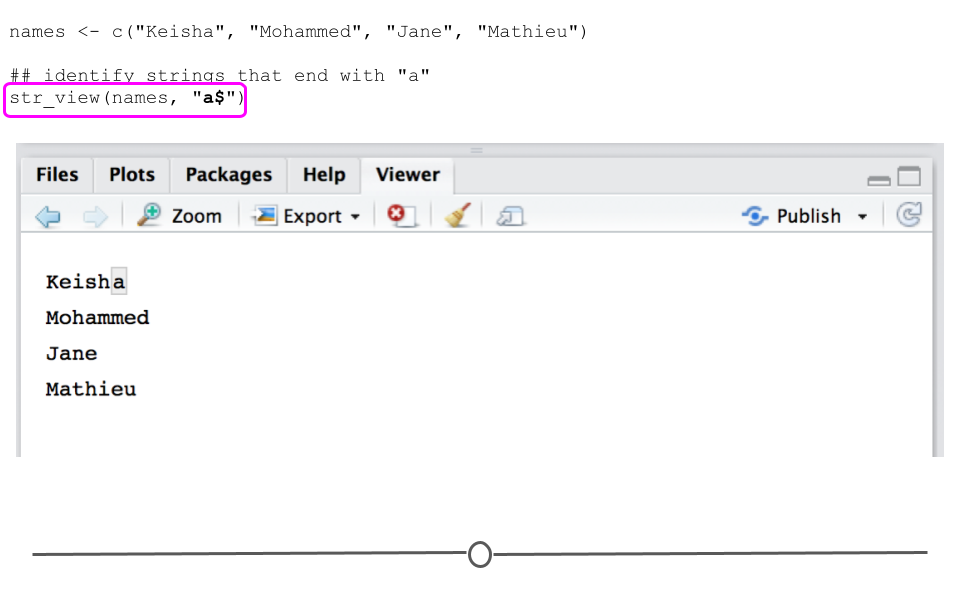
str_view() can be very helpful. The output from str_view() highlights what portion of your string match the pattern specified in your regexp with a gray box. For example, to we’ll start using anchors and str_view() below:
names <- c("Keisha", "Mohammed", "Jane", "Mathieu")

## identify strings that start with "M"
str_view(names, "^M")
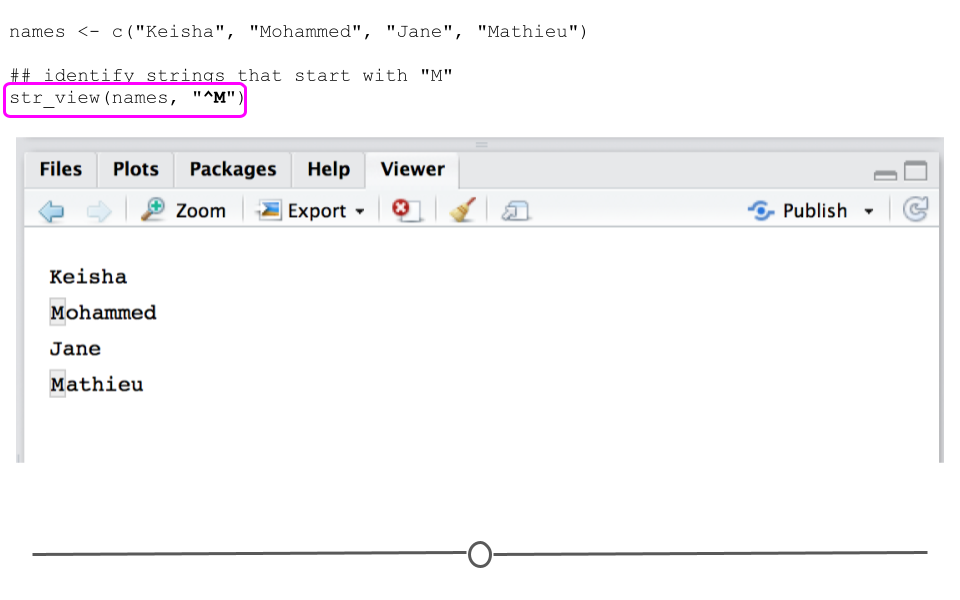
In this first example we see in the Viewer Panel that
str_view() has identified the names that start with the letter "M".
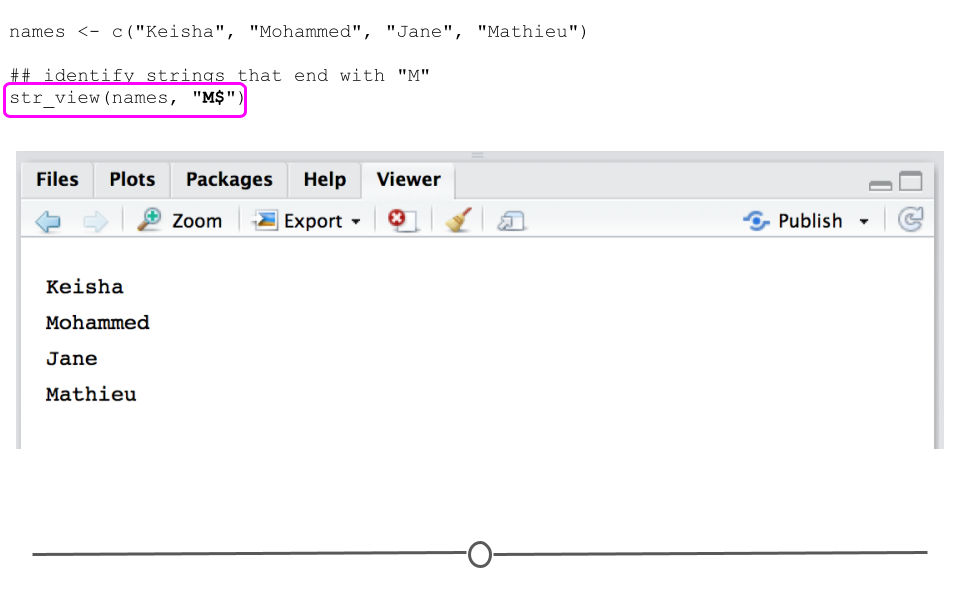
However, if you try to match strings that end with the letter "M", no match is found.
## identify strings that end with "M"
str_view(names, "M$")
To identify names by that end with the letter "a", you would use the following.
## identify strings that end with "a"
str_view(names, "a$")
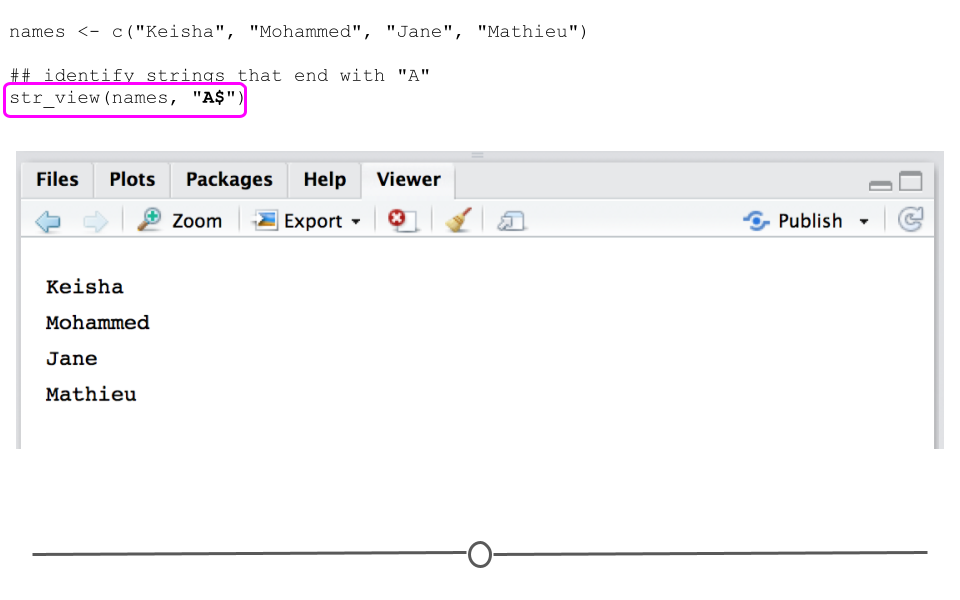
Note, however, that regexps are case sensitive. To match patterns, you have to consider that "A" and "a" are different characters.
## identify strings that end with "A"
str_view(names, "A$")
Subsubsection 3.7.3.3 Count matches: str_count()
To count the number of matches within your strings, you would use
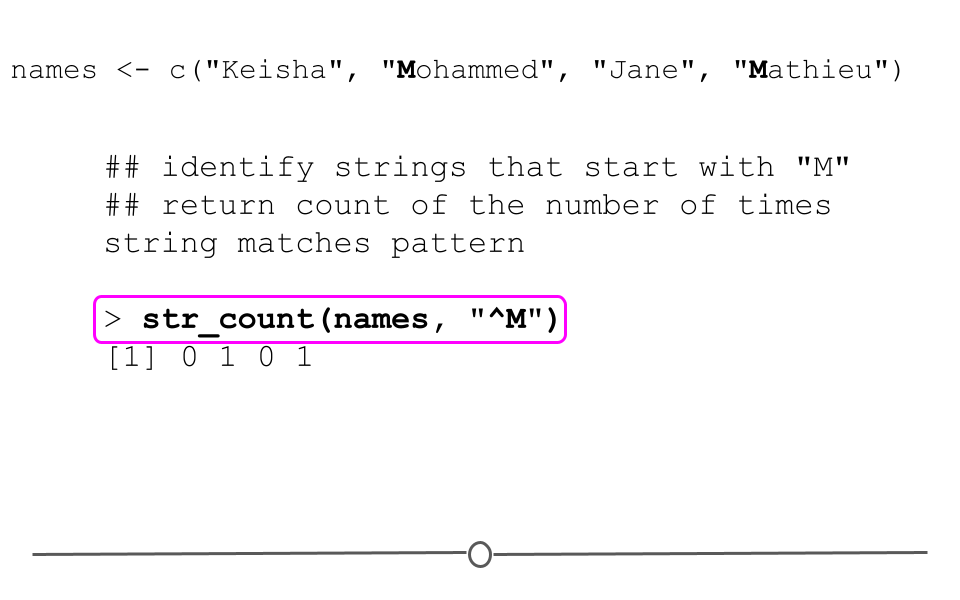
str_count(). Below, using the names vector we’ve been using, we see that str_count() produces a 1 for those names that start with "M" and a 0 otherwise.
## identify strings that start with "M"
## return count of the number of times string matches pattern
str_count(names, "^M")
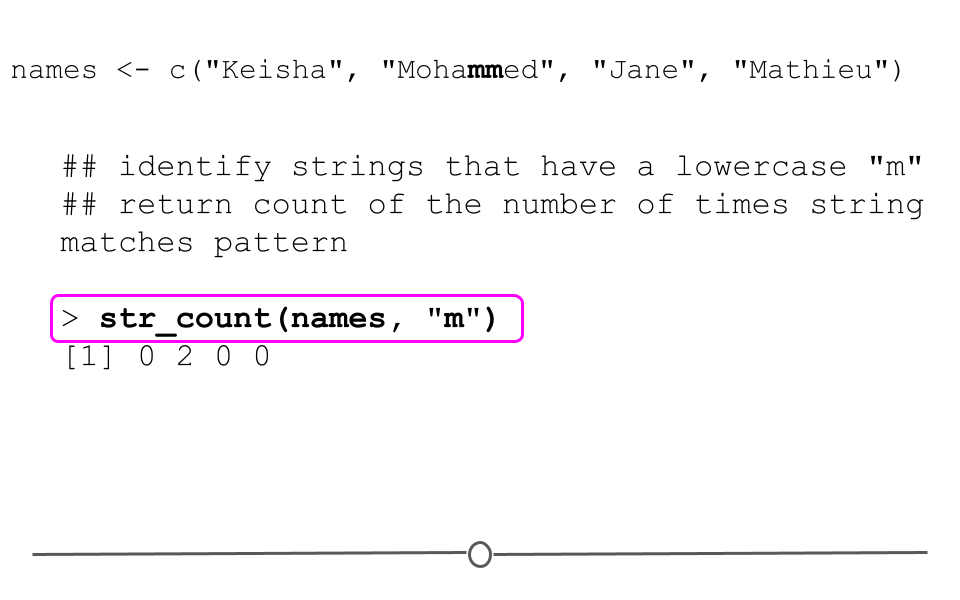
However, if we instead wanted a count of the numbers of lowercase "m"s, we could still use
str_count() to accomplish that. Notice below we’ve removed the specification to just look at the beginning of the string. Here, we’re looking for lowercase m’s anywhere in the string and counting them:
## identify strings that have a lowercase "m"
## return count of the number of times string matches pattern
str_count(names, "m")
## [1] 0 2 0 0
Subsubsection 3.7.3.4 Detect matches: str_detect()
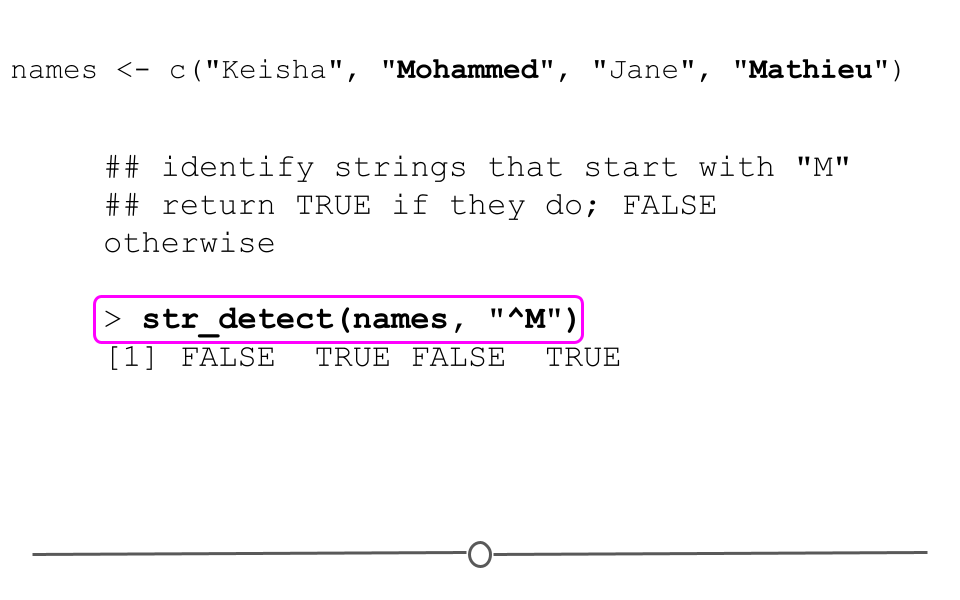
Instead of returning a count, at times you’re just interested in knowing which strings match the pattern you’re searching for. In these cases you’ll want to use
str_detect(). This function simply returns a TRUE if the string matches the pattern specified and FALSE otherwise.
## identify strings that start with "M"
## return TRUE if they do; FALSE otherwise
str_detect(names, "^M")
## [1] FALSE TRUE FALSE TRUE
Subsubsection 3.7.3.5 Subset matches: str_subset()
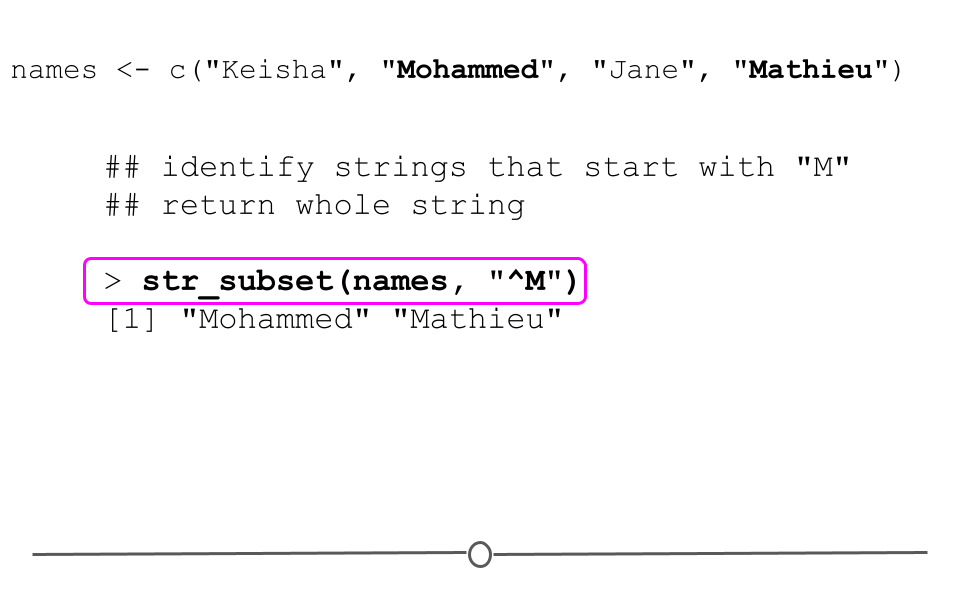
To return the actual string that matches the specified pattern, rather than a TRUE/FALSE, you’ll look to
str_subset(). This function pulls out those strings that match the specified pattern. For example, to obtain the subset of names whose values start with the capital letter "M", you would use the following:
## identify strings that start with "M"
## return whole string
str_subset(names, "^M")
## [1] "Mohammed" "Mathieu"
Subsubsection 3.7.3.6 Extract matches: str_extract()
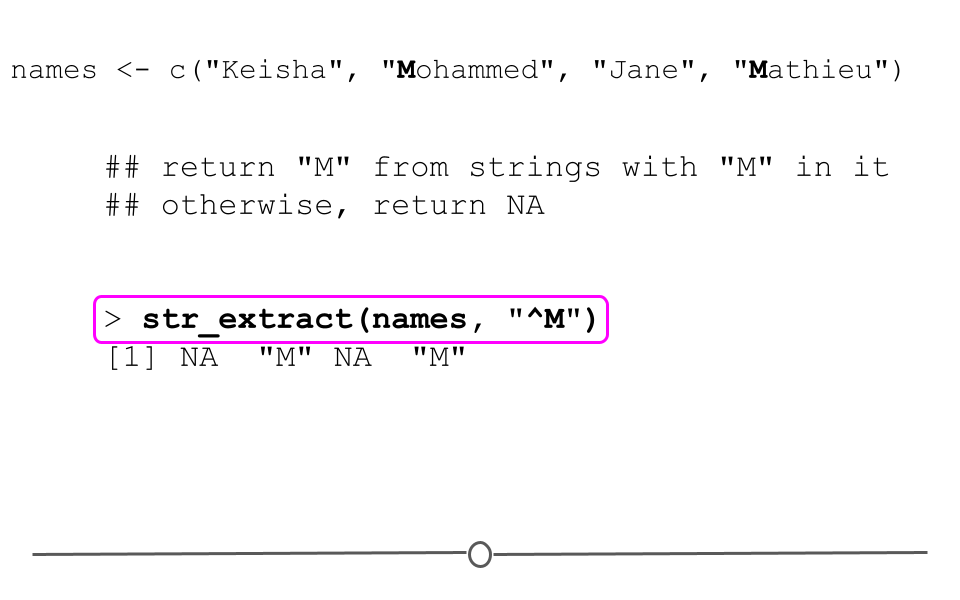
To extract only the portions of the string that match the specified pattern, you would use
str_extract(). This function returns the pattern specified for strings where it is found and NA otherwise. For example, by searching for names that start with M, below, we see that the second and fourth strings in our vector return the pattern specified ("M") and that the first and third strings in the vector return NA, as they do not start with a capital "M".
## return "M" from strings that start with "M"
## otherwise, return NA
str_extract(names, "^M")
## [1] NA "M" NA "M"
Subsubsection 3.7.3.7 Replace matches: str_replace()
The final basic function from
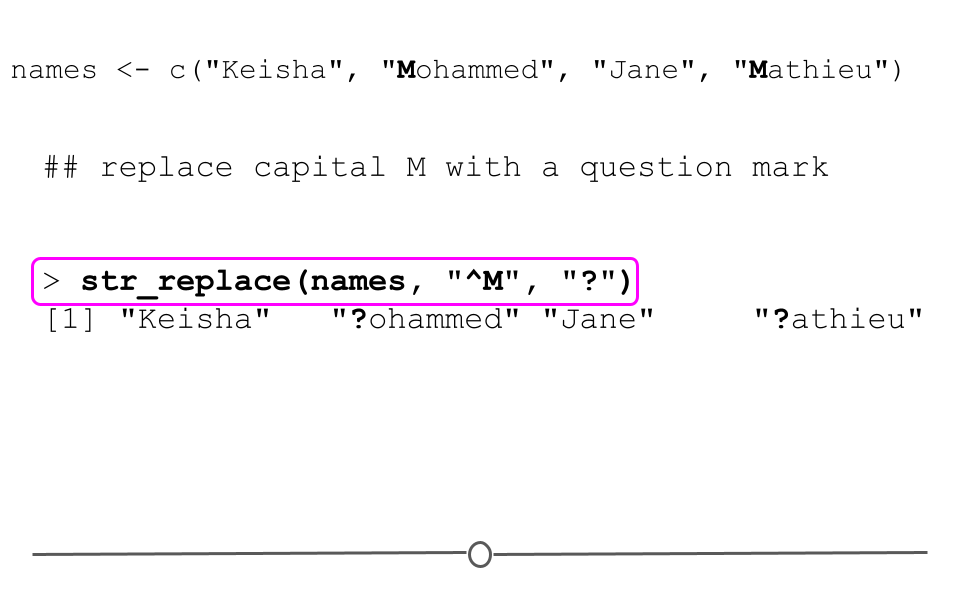
stringr that we’ll discuss is str_replace(). This function identifies a regex and replaces each occurrence with whatever replacement the user specifies. For example, below we search for strings that start with the capital letter "M" and replace each of them with a question mark. All strings that do not match the regex are returned unchanged.
## replace capital M with a question mark
str_replace(names, "^M", "?")
## [1] "Keisha" "?ohammed" "Jane" "?athieu"
Subsubsection 3.7.3.8 Common regular expressions
Above we discuss two common patterns searched for using regular expressions: starts with (
^) and ends with ($). However, there are a number of additional common ways to match patterns. They are listed here, and we’ll discuss each one in slightly more detail below.
Searching for characters.
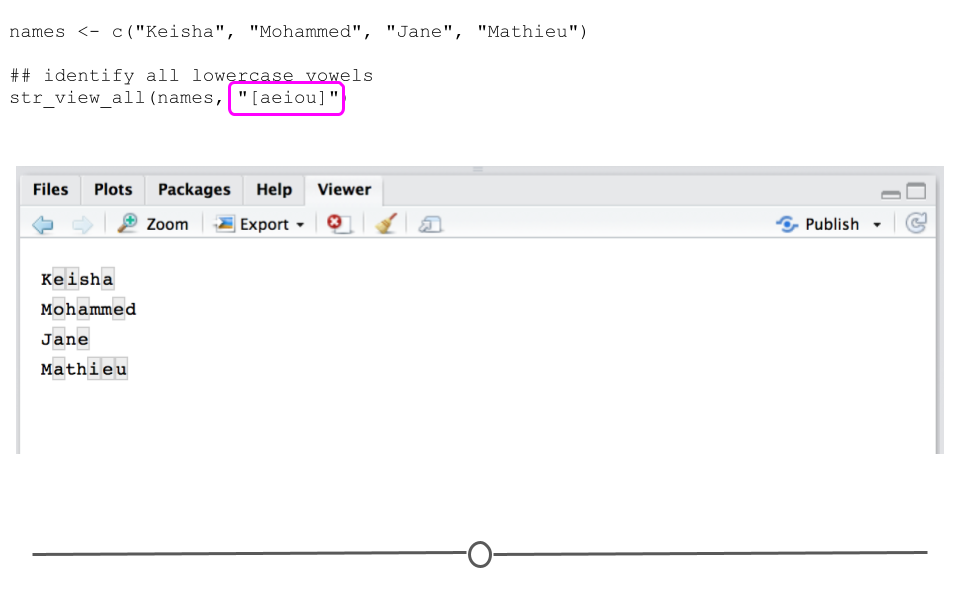
To search for a set of characters, you place these characters within brackets. Below, this will identify anywhere in the strings where you have a lowercase vowel. Note, that we’re now using
str_view_all() to identify all occurrences of these characters, rather than str_view(), which only identifies the first occurrence in each string.
## identify all lowercase vowels
str_view_all(names, "[aeiou]")
Searching for anything other than a set of characters.
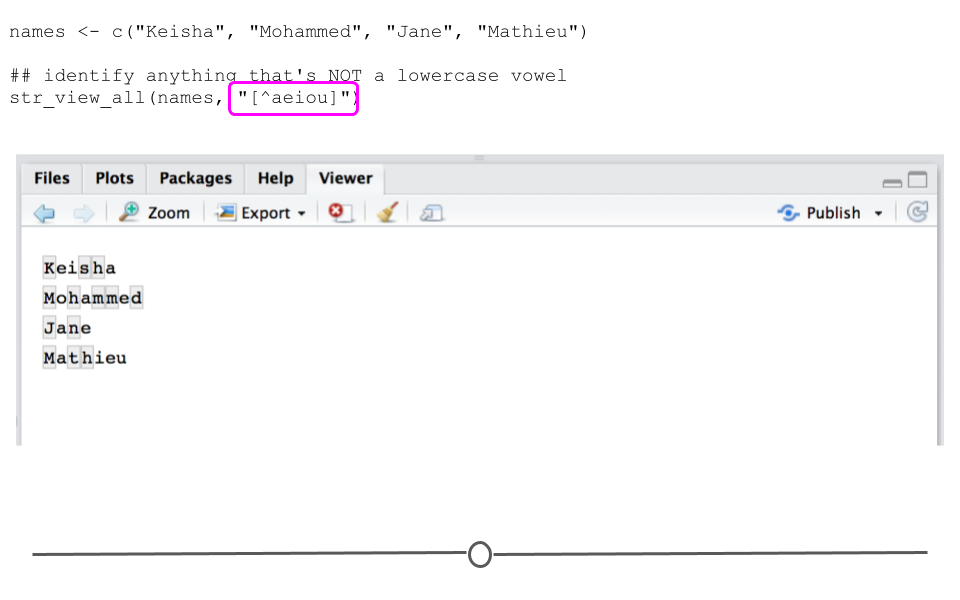
By adding a caret (
^) before the vowels within the brackets, this regular expressions specifies that you are searching for any character that is not a lowercase vowel within your strings.
## identify anything that's NOT a lowercase vowel
str_view_all(names, "[^aeiou]")
Search for digits.
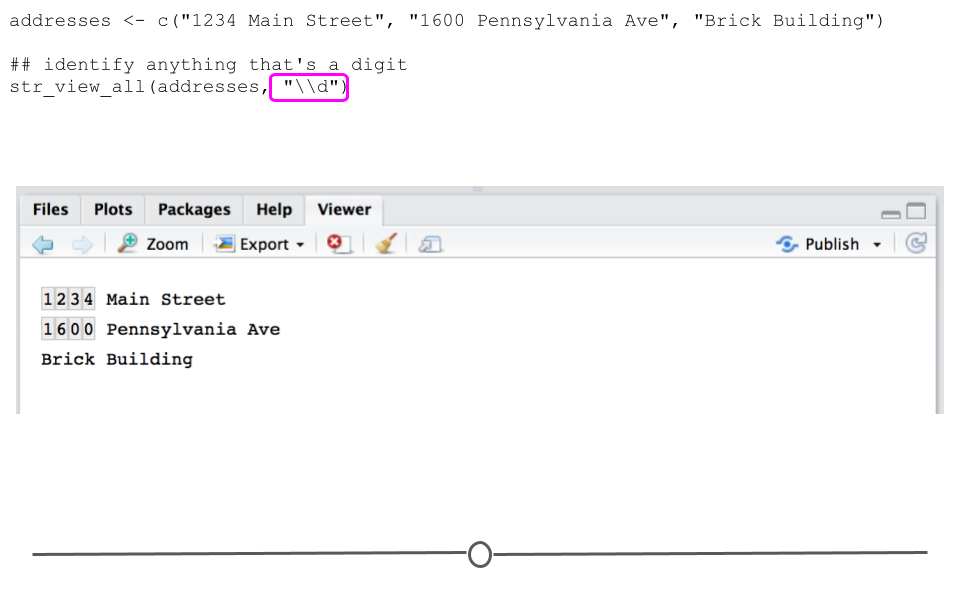
To search for digits (numeric variable between 0 and 9) in a string you use "\d"; however, backslashes are protected characters in R. This means that you have to escape this character first with an additional backslash (
\), to let R know that you want to search for the regular expression "\d".
addresses <- c("1234 Main Street", "1600 Pennsylvania Ave", "Brick Building")

## identify anything that's a digit
str_view_all(addresses, "\\d")
Search for whitespace.
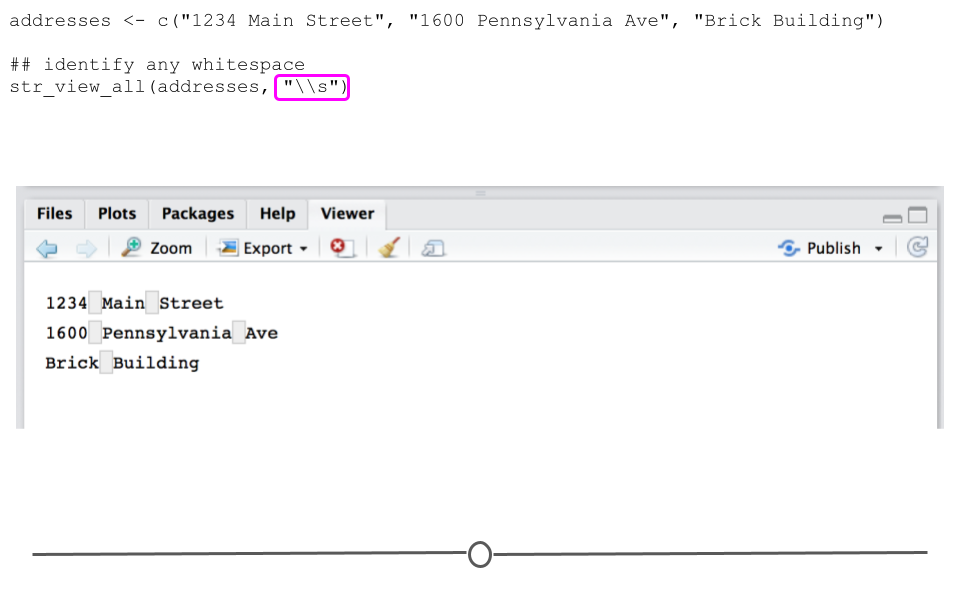
Identifying whitespace in R identifies any spaces, tabs or newlines. Note that again we have to escape the "\s" with a backslash for R to recognize the regular expression.
## identify any whitespace
str_view_all(addresses, "\\s")
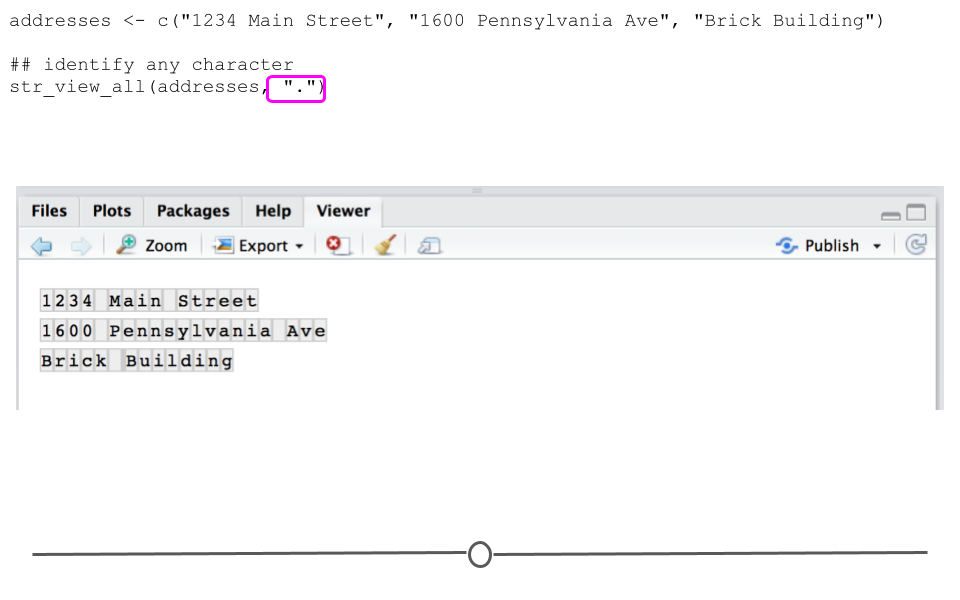
Identify any character (except newline).
To identify any character except for a newline you’ll use
".". Notice in our addresses example that there are no newlines, so this pattern will match with the entire string.
## identify any character
str_view_all(addresses, ".")
Subsubsection 3.7.3.9 Repetition within regular expressions
Searches for regular expressions allow you to specify how many times a pattern should be found within the string. To do so, you use the following:
-
?: 0 or 1 -
+: 1 or more -
\\*: 0 or more
-
{n}: exactly n times -
{n,}: n or more times -
{n,m}: between n and m times
Examples of repetition within regular expressions.
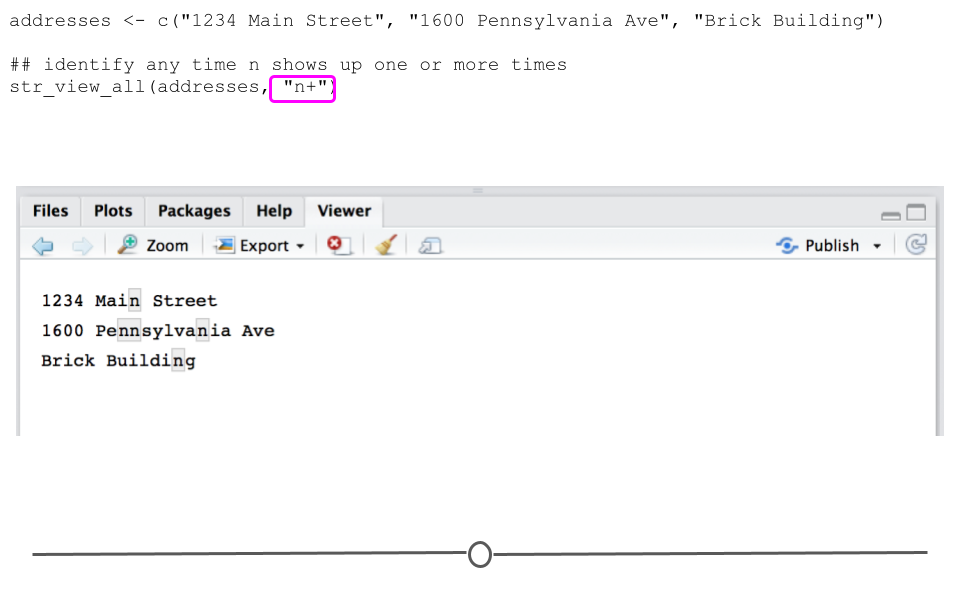
Using the definitions above, we can see that the following code will identify patterns within the addresses vector where n shows up one more more times in a string.
## identify any time n shows up one or more times
str_view_all(addresses, "n+")
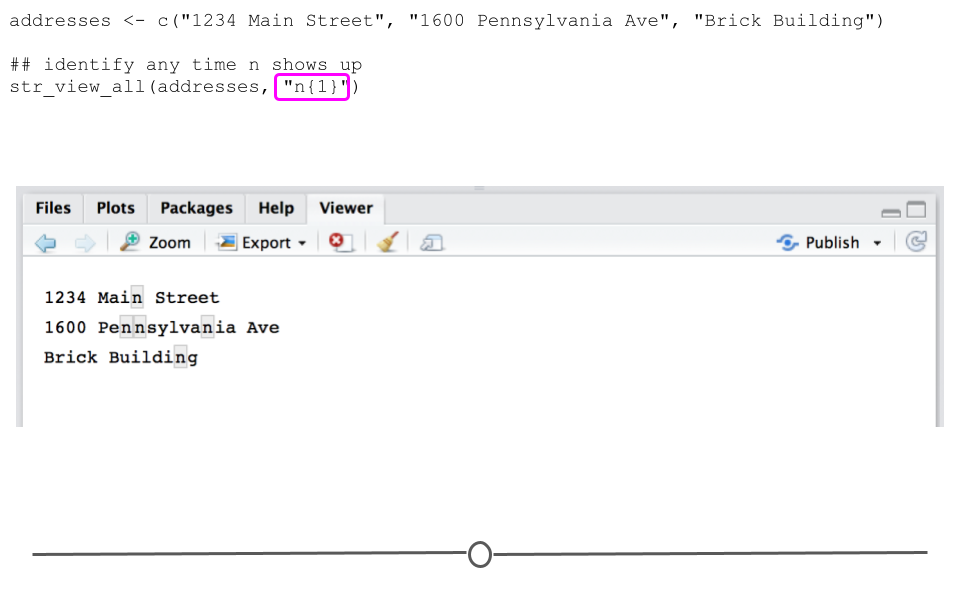
While the difference is slight in the output here, we’re identifying portions of the string where n shows up exactly once. So, instead of the ’nn’ in Pennsylvania matching together, the code here splits these up, due to the fact that we’re specifying the pattern match ’n’ exactly one time:
## identify any time n shows up
str_view_all(addresses, "n{1}")
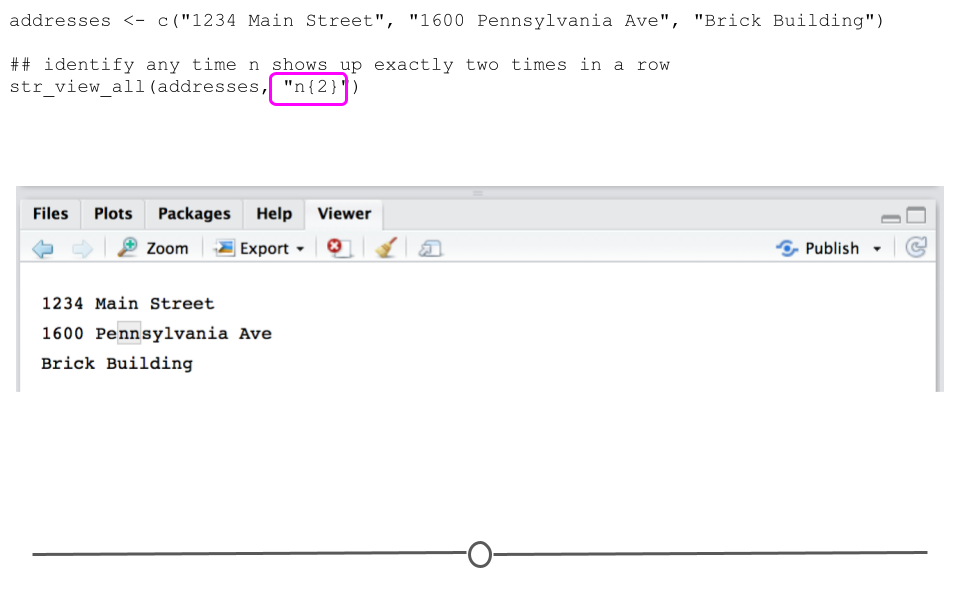
If you only wanted to match strings where n showed up twice in a row, you could specify that in this way:
## identify any time n shows up exactly two times in a row
str_view_all(addresses, "n{2}")
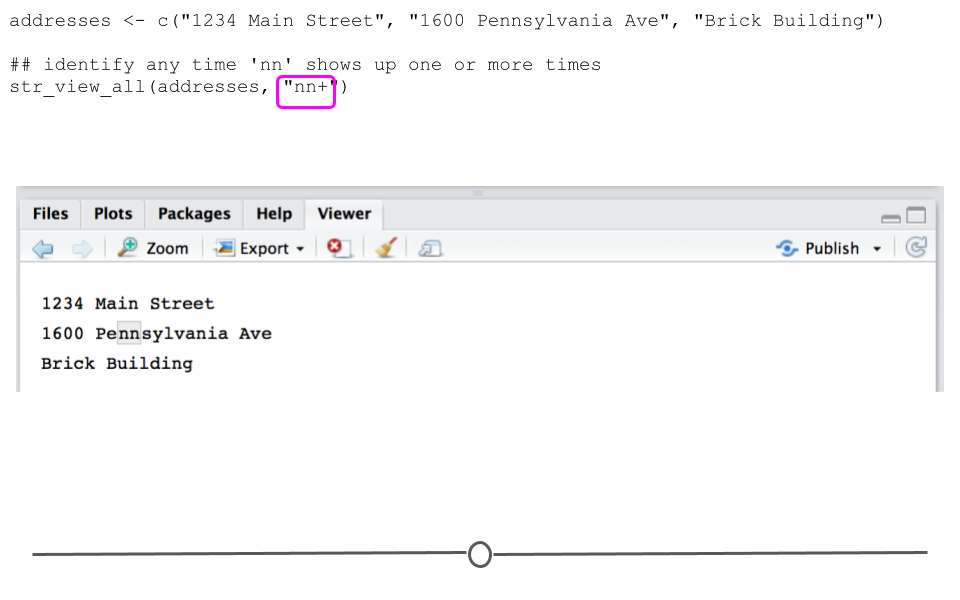
This could similarly be achieved by specifying to search for the pattern ’nn’ one or more times (
+):
## identify any time 'nn' shows up one or more times
str_view_all(addresses, "nn+")
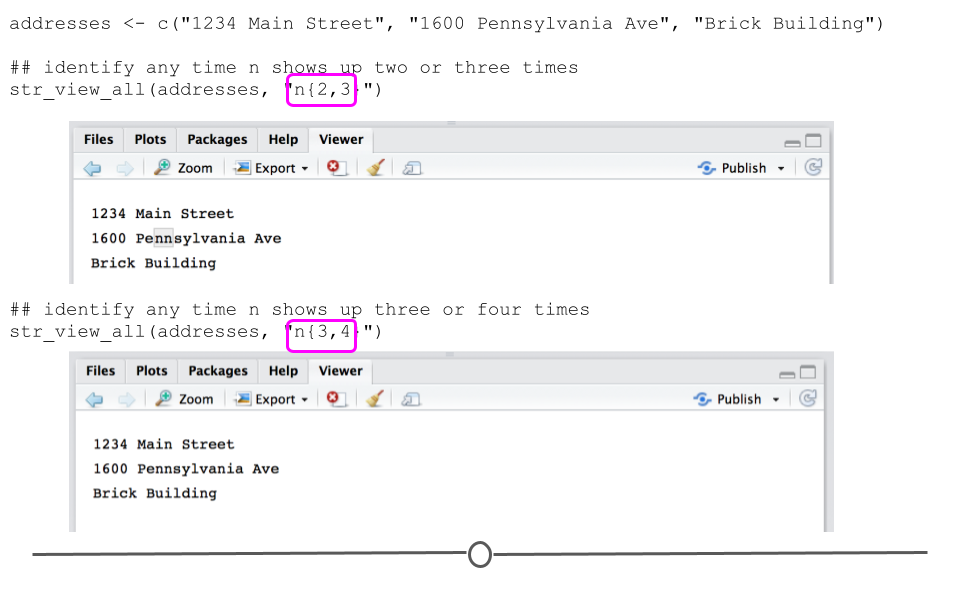
You can also specify a range of the number of times to search for a pattern within your string. Below, we see that if we specify n be searched for at least two and at most 3 times, the pattern matches within our string. However, if we increase that to between three and four times, no pattern matching occurs, as there are never three or four n’s in a row in our strings.
## identify any time n shows up two or three times
str_view_all(addresses, "n{2,3}")

## identify any time n shows up three or four times
str_view_all(addresses, "n{3,4}")
Subsection 3.7.4 glue
Beyond using
stringr to work with strings, there’s an additional helpful package called glue. According to the glue website:
Glue offers interpreted string literals that are small, fast, and dependency-free. Glue does this by embedding R expressions in curly braces which are then evaluated and inserted into the argument string.
To get started with this package, it will have to be installed and loaded in, as it is not a core tidyverse package.
# install.packages("glue")
library(glue)
So, if you want to pass an R variable directly into a string, that becomes simpler with
glue.
For example:
# use glue to interpret string literal
topic <- 'tidyverse'
glue('My favorite thing to learn about is the {topic}!')
## My favorite thing to learn about is the tidyverse!
Note that the code above interprets the variable
topic within the string specified in the glue() function. The variable is specified within curly braces: {}.
This becomes particularly helpful when combining information within a data frame.
For example, if we return to the
msleep dataset with information about mammalian sleep, we could use mutate() to add a column summarizing the name of the animal, how many minutes the animal spends asleep and how many awake. Note that these columns are currently in hours, so we’re going to convert that to minutes within the glue statement here:
# add a description column using glue
msleep %>%
  mutate(description = glue("The {name} typically sleeps for {sleep_total * 60} minutes and is awake for {awake * 60} minutes each day.")) %>%
  select(name, sleep_total, awake, description)
## # A tibble: 83 × 4
##    name                       sleep_total awake description
##    <chr>                            <dbl> <dbl> <glue>
##  1 Cheetah                           12.1  11.9 The Cheetah typically sleeps fo…
##  2 Owl monkey                        17     7   The Owl monkey typically sleeps…
##  3 Mountain beaver                   14.4   9.6 The Mountain beaver typically s…
##  4 Greater short-tailed shrew        14.9   9.1 The Greater short-tailed shrew …
##  5 Cow                                4    20   The Cow typically sleeps for 24…
##  6 Three-toed sloth                  14.4   9.6 The Three-toed sloth typically …
##  7 Northern fur seal                  8.7  15.3 The Northern fur seal typically…
##  8 Vesper mouse                       7    17   The Vesper mouse typically slee…
##  9 Dog                               10.1  13.9 The Dog typically sleeps for 60…
## 10 Roe deer                           3    21   The Roe deer typically sleeps f…
## # … with 73 more rows
Note that we’ve selected the four columns used in this example with
select() to focus on the output created using glue() in the description column. For each observation the information in description utilizes the appropriate information for that observation and the columns specified within the curly braces within the glue() function.